Migration guide · Product guides, pricing and migration
TransactionDesk vs Transact: what changed, and how to move your contacts, templates and old files
Transact is Lone Wolf's replacement for TransactionDesk, in the same login. Contacts and the templates you built copy across with one click. Old transactions do not move: Transact links to them and opens them back in TransactionDesk. Here is what to check before and after, and what to export while you still can.
Are TransactionDesk and Transact the same product?
No. TransactionDesk is the product Lone Wolf now calls Transactions (TransactionDesk Edition), and MLSs and associations hand it to members as a benefit. Transact is the transaction management part of Lone Wolf Foundation, the company's newer platform, and it comes in an Agent edition and a Broker edition. Lone Wolf's Texas page lists what Transact does that TransactionDesk and zipForm do not: client-based transactions that keep multiple offers and properties connected, a lost-deal workflow that reuses the file for the next offer, share groups, side-by-side form editing and automatic form updates.
The editions do not map one to one. TransactionDesk Broker Edition gave brokers file review with broker, staff, listing and closing reviewers. Transact Broker Edition builds compliance on checklists tied to a workflow phase and office templates, and it is sold separately from the agent benefit. Lone Wolf's Texas page says Transact is at no cost to Texas REALTORS® members, that TransactionDesk users at NTREIS, Houston and Unlock MLS are grandfathered into a Transact Broker Member Benefit edition, and that TransactionDesk Broker Edition is not part of the Texas benefit. In Austin the clock is set: TransactionDesk leaves Unlock MLS on December 7, 2026. What each edition costs is in our TransactionDesk and Transact pricing guide.
What moves, what links, and what only stays viewable?
Three different things happen to your data, and Lone Wolf's own pages use three different verbs for them. Contacts and templates are migrated, meaning a copy is created in Transact. Old transactions are linked, meaning Transact shows the list and hands you back to TransactionDesk to open one. Everything else stays viewable only for as long as the TransactionDesk account does.
Object by object: what the move does to each thing in your TransactionDesk account
| In TransactionDesk | What happens | How | Check afterwards |
|---|---|---|---|
| Contacts you created | Copied into Lone Wolf Foundation Contacts. Automatic for Transact accounts started after April 16, 2026. | Contacts, tick some and use the basket, or Migrate Contacts to Transact for all. | Count in Contacts matches TransactionDesk. Lone Wolf calls it a one-time event. |
| Your brokerage's global contacts | Not migrated. Only your own contacts move. | Export to CSV and import into Contacts by hand. | Open a few parties on a migrated template and confirm the names resolved. |
| Templates you created | Copied as Personal templates. Automatic for Transact accounts started on or after March 5, 2026. | Templates, Transaction Templates, More Options, Send to Transact. | Templates tab in Transact lists them. Admins change ownership to Office or Global. |
| Templates someone else built | Cannot be sent. You can only migrate templates you created. | The creator sends them, or a broker admin rebuilds them as Office templates. | Every office template shows an Office or Global tag in the dropdown. |
| Old transactions and their documents | Linked. Transact lists them, and opening one takes you back into TransactionDesk. | Link the accounts from the banner in TransactionDesk. Toggle on the Transactions tab. | Viewable only while the TransactionDesk account exists. Archive each file to PDF first. |
| Checklists and broker review | No migration on any Lone Wolf page. Transact Broker Edition uses its own checklists. | Broker admin builds checklists per phase and attaches them to office templates. | Open a test purchase, click Offer Accepted, and the review status should read Submission Required. |
| Signings | Authentisign powers Transact signings and stays in the Texas benefit. New signings start in Transact. | Nothing to migrate. | A Transact export zip includes signing certificates since August 2026. |
How do you link the two accounts?
Everything starts with a Lone Wolf Account. Inside TransactionDesk a banner offers to link it to Transact. Click Get Started, register a Lone Wolf Foundation account if you have none, and you land on Transact with your TransactionDesk transactions listed beside it. Texas members see the same prompt in TransactionDesk or zipForm, creating the account is optional, and their existing single sign-on keeps working for both.
Who can move what is narrow. You can only migrate contacts you created, never your brokerage's global contacts, and only templates you created. A system admin can preview migrated templates before changing who owns them. Office and Global templates in Transact can only be created by a broker admin. If you are an Unlock MLS member, claim the account before December 7: Unlock says that is when current TransactionDesk data will migrate over, and its own advice is to export your data as well.
What should you do before you click Migrate?
The migration makes copies and leaves TransactionDesk untouched, so the risk is not the click. The risk is losing the TransactionDesk account later, when the benefit ends or you change brokerages, with files you never pulled. Lone Wolf's terms say that on termination customer data may be permanently deleted or destroyed, that you should export what you want to keep beforehand, and that help exporting may cost extra. Do these five things first.
Step 1: Export your contacts to CSV
In TransactionDesk open Contacts, tick them all, click the basket and choose export contacts to csv. Keep the file whatever the migration does.
Step 2: List the templates you own
Only templates you created can be sent to Transact, so note which ones your broker or association built and who will rebuild them.
Step 3: Archive each closed transaction to PDF
Open the transaction, choose Archive from More Options, then Generate New Archive. The PDF carries the documents as attachments and downloads from the same menu.
Step 4: Check the transfer setting if you run the office
If transaction transfer is not enabled in Office Settings, a departing agent's files leave with them, so copy or export them before any agent moves.
Step 5: Write down the counts
Contacts, templates and transactions by status. You will compare them against Transact in the last step.
How do contacts move?
Contacts land in Lone Wolf Foundation Contacts, the address book Transact and the other Foundation products share. If you started using Transact after April 16, 2026 they have already been copied. Otherwise open Contacts in TransactionDesk and either tick the ones you want, click the basket and choose Migrate Contacts to Transact, or click Migrate Contacts to Transact in the header to send them all. The release notes call it a one-time event after you claim your Lone Wolf Account, and they say the intention is that you maintain contacts in Foundation from then on.
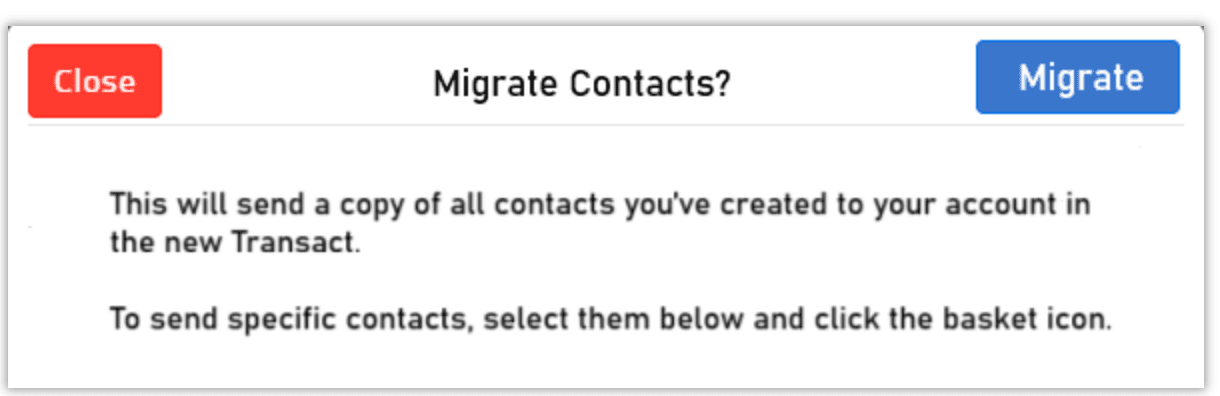
Shared brokerage contacts need the long way round. Export them to CSV from TransactionDesk, then in Foundation Contacts use the arrow beside New Contact, choose import from file and map the columns. Lone Wolf's own tutorial shows that route, so expect it to work for any contact the migration button skipped.
How do templates move, and who owns them afterwards?
In TransactionDesk open Templates, then Transaction Templates, click More Options beside a template and choose Send to Transact. Templates created before you linked the accounts were copied automatically if your Transact account started on or after March 5, 2026, and anything you build in TransactionDesk after linking needs the Send option. Every migrated template arrives as a Personal template, visible only to you.
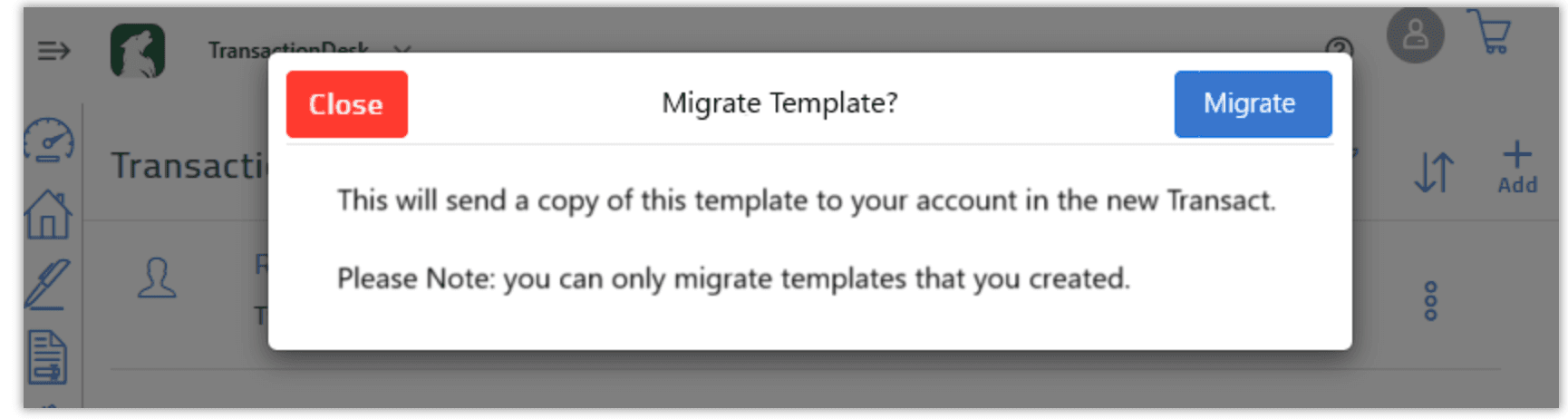
Ownership is the part brokers get wrong. Transact has three template categories. Personal templates show only to the agent who made them. Office templates show to one brokerage or office, and Global templates to several, and both can only be created by a broker admin. Office templates are also the only kind that can carry checklists and auto-apply by transaction type and property type. So the brokerage's standard listing template, migrated by whoever built it, sits in that person's Personal list until a broker admin previews it and changes the ownership. Until then no agent sees it and no checklist fires.
What happens to your old transactions?
They stay in TransactionDesk. Lone Wolf's linking video shows a toggle on the Transactions tab between Transact deals and TransactionDesk transactions, and clicking a TransactionDesk transaction takes you back to its page in TransactionDesk. The same video says TransactionDesk functionality within Transact is limited and recommends creating new transactions in Transact. The Transact video library lists the route under Access your TransactionDesk transactions.
Linked means viewable while the old account exists. The Texas REALTORS® member page put it plainly as of July 2026: a member who retains the TransactionDesk account keeps the historical files through the retention period, and those who cancel may see disruptions in historical file visibility. Unlock MLS tells Austin members that history will carry over if they claim Transact before December 7, and Lone Wolf's own help pages describe only the link. Treat the link as the mechanism and the carry-over as a promise, and archive the files yourself either way.
The export from TransactionDesk is per transaction. Archive from More Options creates a PDF of the file with each document attached under a thumbtack icon, and the same menu downloads it later. When transactions are transferred away from an agent, TransactionDesk emails a link that downloads the same kind of PDF with the documents attached. Brokers can also keep TransactionDesk after a benefit ends by taking it directly from Lone Wolf: the Austin page offers exactly that, with login through a Lone Wolf account instead of the member benefit login.
Which files do you finish where?
Finish what is under contract where it started. Texas REALTORS® states the rule for its members: transactions entered in zipForm are completed in zipForm, and transactions entered in Transact are completed in Transact. The linking video gives the same advice for TransactionDesk. Start every new file in Transact from the day you link, and give the old system a close date, after which it is read-only for you.
Brokerages have one more rebuild. TransactionDesk file review ran on checklists with broker, staff, listing and closing reviewers, and only the broker reviewer could fully approve a document. In Transact Broker Edition a checklist applies to one phase of one transaction type, it fires when an agent moves a transaction into that phase, and multi-tier review is set per office. Nothing on Lone Wolf's pages migrates a TransactionDesk checklist, so build them in Transact, attach them to office templates, and run one test purchase through Offer Accepted to see Submission Required appear.
None of this reads the executed contract into deadlines or chases the lender when the appraisal is late. For each live closing you carry across, upload the contract to DeedSpring and it reads the price, deposits, contingencies and dates into deadlines on the file, then checks every open closing hourly and drafts the chases for a person to send.
How do you prove the move worked, and how do you back out?
Compare the counts you wrote down. Contacts: the number in Foundation Contacts against your TransactionDesk list, minus the global contacts you knew would not move. Templates: the Transact Templates tab should list every template you sent, all tagged Personal. Old files: flip the toggle on the Transactions tab and count TransactionDesk transactions against the list in TransactionDesk itself. Then open one migrated template and check its parties, paperwork and to-dos survived in the right folders.
For the files you start in Transact, the export is better than TransactionDesk's. Transact exports the transactions list as a CSV, and the ellipsis menu on a transaction exports a zip: a folder named after the client, a PDF of the deal details with to-dos, timeline and the full history, a paperwork folder, the same for every lost deal, and since August 2026 the signing certificates too. Transact also keeps document versions and lets you transfer a transaction to another agent. Learn both before the first agent leaves.
Rollback is the easy part. Every migration dialog says it sends a copy, TransactionDesk keeps the original, and nothing is deleted or lost when you begin using Transact. If a template arrives wrong, you still have the original to send again. What never arrives is the list above: global contacts, templates you did not build, checklists and review history. Pull those by hand, or accept that they stay behind.
What does DeedSpring do after the move?
TransactionDesk held the forms, and Transact will hold them next, with your association or brokerage paying for whichever edition you land on. DeedSpring is the coordinator for the closings in between. Upload the executed contract and it reads the price, deposits, contingencies and dates into deadlines on the file. It checks every active file every hour, flags what is slipping, and drafts the chases and client updates for you to send, with anything sensitive or negotiable always waiting for a person. Your buyers and sellers get a portal, and e-signing is built in.