Migration guide · Product guides, pricing and migration
Import Brokermint transactions into Open To Close: a field-by-field checklist
Open To Close still calls it Brokermint. The connector imports one BoldTrail BackOffice transaction at a time, on an API key only the account owner can request, and nothing goes back. Here is which field lands where, how to run the first import, how to move the closed files by CSV, and what stays in the back office.
Is there still a Brokermint connector?
Yes, under the old name. brokermint.com now opens on Meet BoldTrail BackOffice, the next generation of Brokermint, while Open To Close's pricing table has a Brokermint Import row, its settings say Manage Profiles under Brokermint, and the import dialog is titled BrokerMint.
Two pages is the number to hold on to. Open To Close's integrations page promises import and export of details, contacts and documents. Its Brokermint help collection has Connecting to Brokermint and Import Brokermint Transaction, and neither mentions export, linking an existing property, or uploading a file back. Dotloop gets ten articles for the same jobs and SkySlope seven, with export, link and upload pages among them. Assume the Brokermint route is one way, into Open To Close.
Brokermint Import is on all three plans: Grow at $99 a month, Pro at $199 and Scale at $399, each with one user and $69 a month per extra user. The CSV import tool, the Contacts and Properties CSV exports and API access are on all three as well. The pricing article has the rest.
Who needs what access?
The connection is an API key, pasted once per profile. Open To Close's connecting page tells you to email [email protected] for it, and says agents who want their own connection can email for their own key. BoldTrail says something narrower on its API page: keys go only to the designated account owner listed in its system, and anyone else is told to ask the owner. So the broker or office admin makes the request, and a TC working across several agents waits on them.
Two more rules from BoldTrail's API FAQ decide what the key can see. Keys are issued and rotated through support, with no self-serve screen. And a key inherits the permissions of the user it belongs to, so a key cut for the owner sees everything the owner sees. If the brokerage wants Open To Close to read transactions and nothing more, it creates a dedicated user with limited permissions and asks for that user's key.
Which fields move, and where do they land?
Open To Close does not publish the Brokermint fields its map offers. BoldTrail does publish its own: the API reference lists what a transaction carries, and the vocabulary page says what each date means. On the other side, Fields 101 names the 13 fields every Open To Close account keeps: Contract Status, Contract Client Type, Address, State, City, Zip, County, Country, Listing Price, Purchase Amount, Contract Date, Closing Date and Listing Date. Everything else is a field you create. Pair them like this.
The field checklist: each part of a BoldTrail BackOffice transaction and where it lands in Open To Close
| On the transaction | In BoldTrail BackOffice | In Open To Close | Watch for |
|---|---|---|---|
| Property address | address, city, state, zip. | Address, City, State, Zip. | County and Country are not API transaction fields. Fill by hand, or map a custom field if your account has one. |
| Price | One field: price. | Purchase Amount for a sale, Listing Price for a listing. | Map it to one of the two, by transaction type. |
| Under-contract date | acceptance_date, when the listing goes under contract. | Contract Date. | Your date templates count from this one. Map it first. |
| Closing date | closing_date is the estimate. closed_at is set when status turns closed. | Closing Date. | Map the estimate. The system date is history. |
| Listing dates | listing_date, expiration_date. | Listing Date, plus a date field you create. | No fixed expiration field in Open To Close. |
| Status | opportunity, active, pending, closed, cancelled. | Contract Status, chosen at import. | You pick from your own status options, so decide the pairing first. |
| Side | representing: seller, buyer or both. | Contract Client Type (Buyer, Seller, Dual), chosen at import. | Both maps to Dual if your options include it. |
| Transaction type | transaction_type, set per account (traditional sale, short sale, REO). | A choice field you create. | No fixed field for it among the 13. |
| People | contacts, each with an account-defined role. | Contacts with a contact role, ticked at import. | Global Settings decides whether a match is overwritten. |
| Documents | The transaction's files. | Imported after the transaction, into folders or file placeholders. | Adds minutes to the import. |
| Checklists | The Checklists tab on the transaction. | Not on the import page. Apply a property template instead. | A date template in it rewrites the dates you just imported. |
| Commission figures | total_gross_commission, sales_volume, commissions_finalized_at. | Field values only, if you map them. | Nothing posts to a ledger. The back office stays the record. |
| Custom attributes | Your own, such as MLS # or Property type. | Fields you add in the Field Editor. | Build them before the field map. |
Three rows carry the risk. Status and Side are chosen on the import screen from your own options, file by file, so decide once how the five BackOffice statuses and the seller, buyer or both flag pair up and write it down. Contract Date is the anchor your date templates count from, so a mis-mapped acceptance date moves every deadline on the file. And the commission figures feed a ledger in BackOffice. In Open To Close they are numbers in fields.
How do you run the first import?
Step 1: Get the API key
The BackOffice account owner emails [email protected]. BoldTrail issues keys only to the owner, so a TC or agent asking directly will be sent back to them.
Step 2: Paste it into Open To Close
Settings, then Apps & APIs, then Manage Profiles under Brokermint. Give the connection a Title, paste the key and click Submit. Current Connections shows what is already linked.
Step 3: Build the field map
Under Templates, open API Field Map Templates, add one for Brokermint and pair each field with the Open To Close field it should fill.
Step 4: Open the picker
Click + Add and choose Import Brokermint, pick the profile, then filter by status or by created, updated or closed date to find the transaction.
Step 5: Apply the map and click the arrow
Each row has its own Apply Field Map Template drop-down. Choose yours before the arrow.
Step 6: Fill the Details tab
Team, Team User, a Property Title with no special characters, then Client Type and Status.
Step 7: Tick the people, pick a template
Contacts are optional and each gets a role. A Property Template brings tasks and dates. Settings covers the Details and Communication tabs.
Step 8: Click Import Property, then file the documents
The page says a few minutes if documents are coming. They map to folders or file placeholders after the transaction exists.
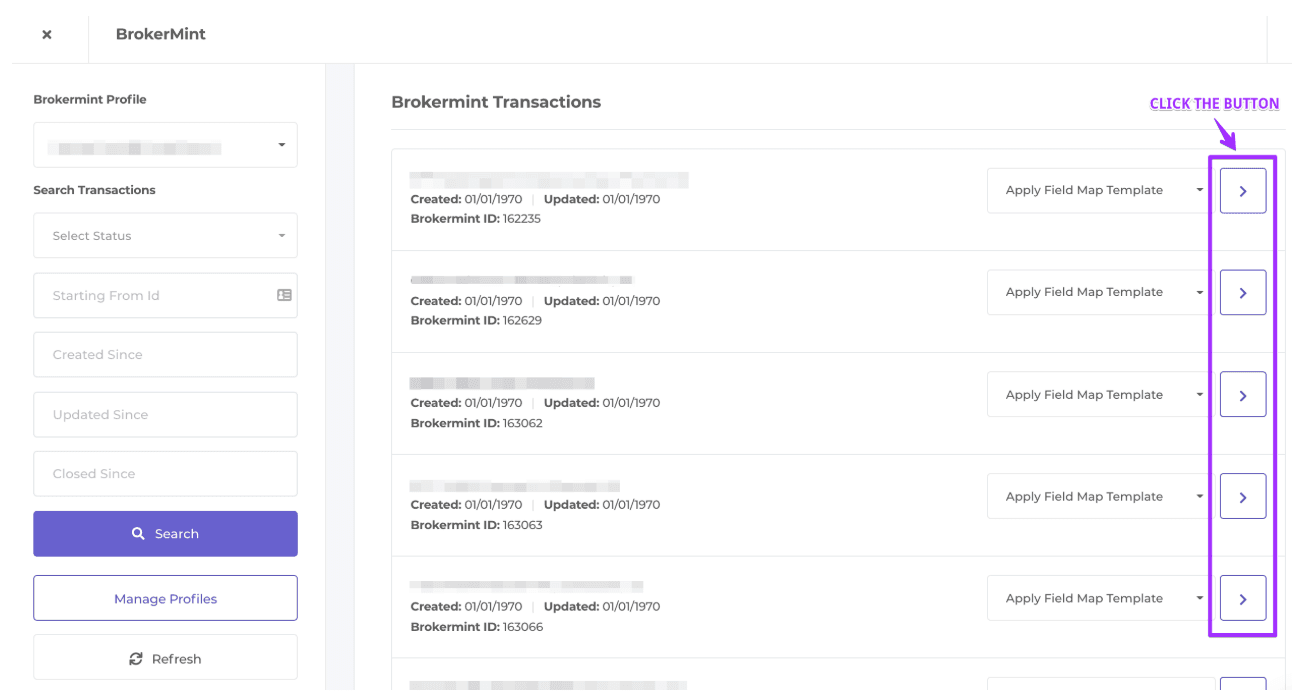
The picker does the finding for you. The import dialog filters by status and by created, updated and closed dates, which are the filters BackOffice's own transaction list offers, and every row shows its Brokermint ID. Write that ID down. It is the one value both systems share, and it is what you will reconcile against. The same steps for a dotloop loop are in importing dotloop transactions into Open To Close.
One trial rule matters if you are still deciding. The help FAQ counts every transaction imported through Brokermint as a trial transaction, deleted ones included, while spreadsheets loaded through the Import tool do not count. Import one real file through the connector, check it against the table above, and move the rest the cheap way.
What about the closed files and the commission history?
Do not import closed transactions one at a time. BackOffice puts an Export button on every report, and a custom Transactions report takes whichever columns you add, with any transaction field you have created available as a column. Build one with Address, Status, Representing Side, Price, Acceptance Date and Closing Date, and export it. Then load it through Open To Close's CSV import tool, which takes 250 properties a spreadsheet, processes a sheet in up to an hour and emails you when it finishes. It needs a Contract Title, a Client Type and a Status that match your field options, plus a team and time zone. The Google Sheets add-on does the same export continuously and one way, through API Nation, whose paid plans start around $19 a month for 1,000 records unless your office's covered list includes it.
The spreadsheet carries fields and no files. For the paper, BackOffice emails the account owner a zip archive of each transaction when it closes, and Documents, then Action, then Download All requests it again. Delivery can take an hour and the link expires in 7 days, so download as you go rather than collecting links.
The commission history does not move, and should not. Open To Close's field map carries field values, and nothing on its Brokermint pages posts to a ledger or touches a payment. BoldTrail's API FAQ calls what happens to your documents after an account ends a contractual question for your service agreement. Settle that with your BoldTrail contact before you cancel anything, and keep BackOffice as the commission record for the files it closed.
The import gives Open To Close the fields and the parties. The deadlines come from the date templates you apply, and the chasing is yours to build as triggers. For each live closing, upload the executed contract to DeedSpring instead and it reads the price, deposits, contingencies and dates into deadlines on the file, then checks every open closing hourly and drafts the chases for you to send. Its help page lists a spreadsheet as a supported import its team sets up with you, so the same report you exported for Open To Close is the one to send.
How do you check the import, and how do you undo it?
Open the BackOffice transaction and the Open To Close property side by side and match the Brokermint ID first. Then read the table above as a checklist: every mapped field equals its BackOffice value, each contact has the role you gave it, and the document count in the property's folders equals the count on the transaction. If you applied a property template, check the dates last, because one with a date template in it adjusts dates already on the file. For the batch, the Properties table exports a CSV of the view you are on, up to 1,000 records, so filter to the imported set and match the row count to your report.
Undoing a bad import happens entirely on the Open To Close side. Deleting a property there is final, the help page says it is gone with no way to retrieve it, and the deleted transaction still counts against a trial. Rejecting a document is final too. The BackOffice transaction is untouched: the two Brokermint pages describe an import and no action that writes back, so the worst case is deleting the property and importing again. A property holds one of Dotloop, SkySlope or Brokermint at a time, so disconnect before you relink.
Where DeedSpring fits after the move
BackOffice keeps the commission plans, the statements and the ledger for what it closed. Open To Close is where you build the templates and triggers that run the file. DeedSpring is for the closings you want coordinated without building them. Open a closing by uploading the executed contract and it reads the price, deposits, contingencies and dates into deadlines. It checks every active file every hour, flags what is slipping and drafts the chases and client updates for you to send, with anything sensitive or negotiable always waiting for a person. If the office wants commission statements and the CDA beside the file, DeedSpring's help page documents those under Brokerage, then Commissions, with a plan per agent and a statement per closing.