Product review · Product guides, pricing and migration
Open To Close review: setup, triggers and exception handling
Open To Close is a transaction coordinator's build-your-own workspace: intake forms, date templates and triggers that queue emails and texts for you to send. Buy Pro at $199 a month if you run a lot of files and want to own the templates. Here is what setup involves, what happens when a date moves or a task is skipped, and what still needs a person.
What is Open To Close, and which plan does this cover?
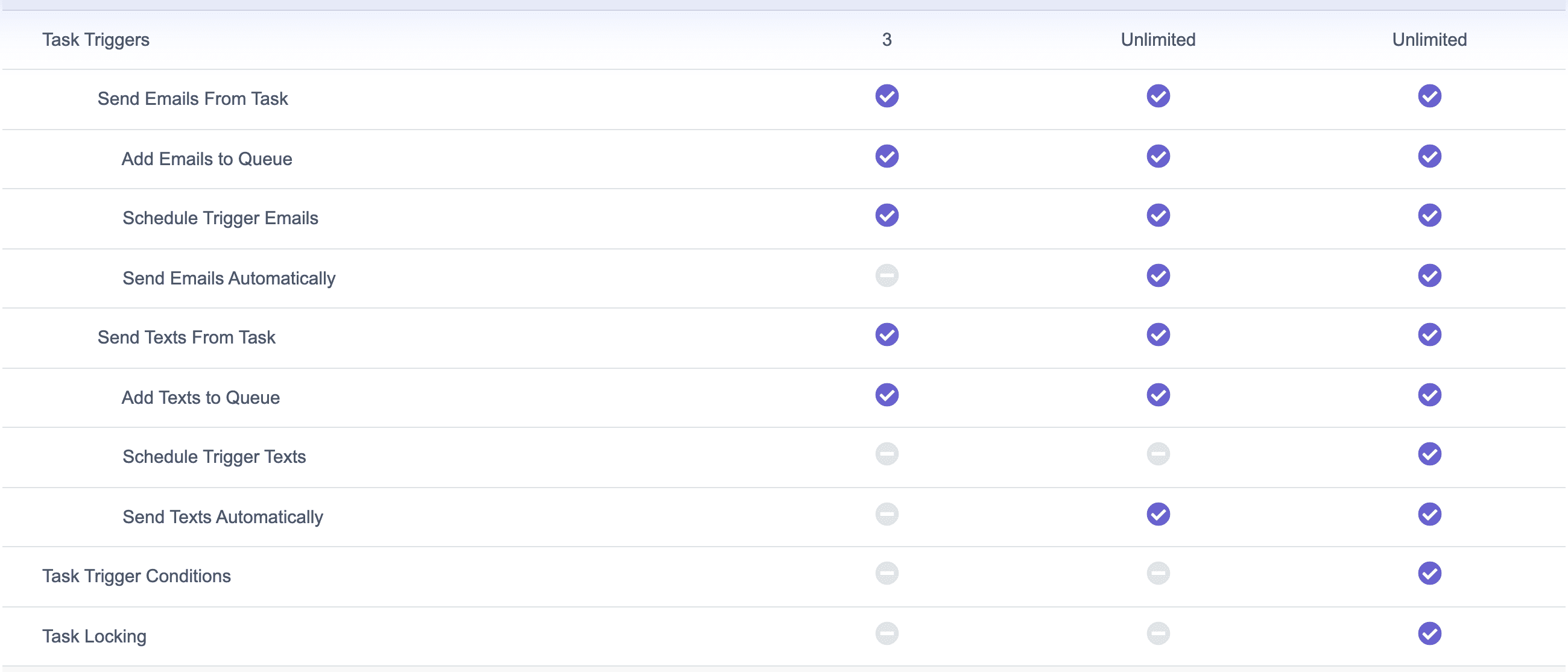
Open To Close is sold to the person doing the coordination. Grow is $99 a month, Pro $199 and Scale $399, each with one user included and $69 a month for every additional team member. Agents, buyers and sellers get free portals. The plans differ in what the automation is allowed to do, so this review says which plan a feature belongs to. Grow caps you at three task triggers and holds every triggered message for a person to send. Pro removes the cap and lets triggers send on their own. Scale adds conditions, task locking and property triggers.
DeedSpring and Open To Close on the jobs a coordinator actually does
| DeedSpring | Open To Close | |
|---|---|---|
| Who buys it | An agent, team or TC firm. Priced per closing. | The coordinator or team. Priced per account plus $69 a seat. |
| Opening a file | Upload the executed contract, or type the details. | An agent's intake form the TC approves, a typed property, or an import. |
| Where deadlines come from | Read from the contract, then counted from the contract or closing date. | Date templates: a reference date plus days, with weekend and holiday rolls. |
| Reminders and chases | The coordinator chases parties and drafts the replies. | Task and property triggers send templated emails and texts. |
| Who presses send | You approve first by default. Sensitive content is always a draft. | Everything queues on Grow. Pro and Scale can send automatically. |
| When a date changes | Move it and the countdown and client timeline follow. | Tied task dates recalculate. An email you already edited does not. |
| When a client sends something | Lands on the closing; the coordinator reads it and drafts a reply. | Documents wait in an approval queue. Texts show at the bell. |
| E-signing | Built in. | A DocuSign integration on Pro and Scale. |
| Price | Starter $15 a month for one closing. Standard $25 a closing, less at volume. | $99, $199 or $399 a month, plus $69 for each extra user. |
One name to keep separate. Open To Close AI, sold at opentoclose.ai, is a different product at $39 per user a month billed annually, or $49 monthly, with an assistant called Ollie. Nothing in this review is about that product.
What does setup involve?
The Getting Started guide lays out the order: fields first, then contacts and documents, then task templates and email templates, then the intake forms that pull it together. Fields are the foundation. They are used throughout the account to power each property, and the guide says the closer they match your state contract, the easier the account is to use. Free group training runs on Tuesdays and Wednesdays, with an open Q&A every Wednesday. The guide recommends testing on a trial property, then going live with one or two transactions at a time.
The reusable unit is the property template. One property template can carry trigger, task, field, document and date templates, and you apply it when you create a property by hand, approve an intake form, or import from Dotloop, SkySlope or Brokermint. Keep task templates small: one for septic rather than septic tasks in a template every file gets. Two things are permanent. A trigger template's type cannot be changed after you create it, so a mistake gets deleted and rebuilt. And applying a property template to a live file can overwrite dates you typed by hand.
A file usually starts as an agent's intake form. The agent fills in the required fields, uploads documents and adds contacts, and the submission lands on your dashboard. You fill in anything flagged as missing, the closing date for example, approve the documents, check the timezone and sending address, and press Approve Submission. Only then does it become a live property.
How do the deadlines get set?
You type the anchor date and templates do the arithmetic. A date template takes a reference date, a number of days, a direction, and optional weekend and federal holiday rolls. The help example is a contract accepted June 1 with 14 HOA days producing an HOA due date of June 15. Tasks hang off those dates or off each other: a task can be due three business days after the contract agreement, or a set number of days after a parent task is completed. Business days, calendar days and skip-the-weekend are all options, and the federal holiday list is editable on every plan. State holidays do not appear in the help pages, so expect to add your own to that list.
Reading the contract is not among the things Open To Close's help pages show it doing. The dates come from the intake form or from your keyboard, which is the one job it leaves entirely with the coordinator. That is also where DeedSpring starts: upload the executed contract and it reads the price, deposits, contingencies and dates into the deadlines on the file, then shows you what it found before building the record.
How do triggers work, and who presses send?
A task trigger fires when a task is completed or when it is not completed by a date you set. It can send an email, send a text, or add and remove templates, field sections and fields. Completing the earnest money task can add the inspection task template, for instance. A property trigger watches fields and contact or file roles instead, and fires when its conditions are true: client type is Buyer and status is Pending, say. Add-or-remove field triggers stay in a listening state, so setting Septic to No removes the septic field section a Yes added. Property triggers are a Scale feature.
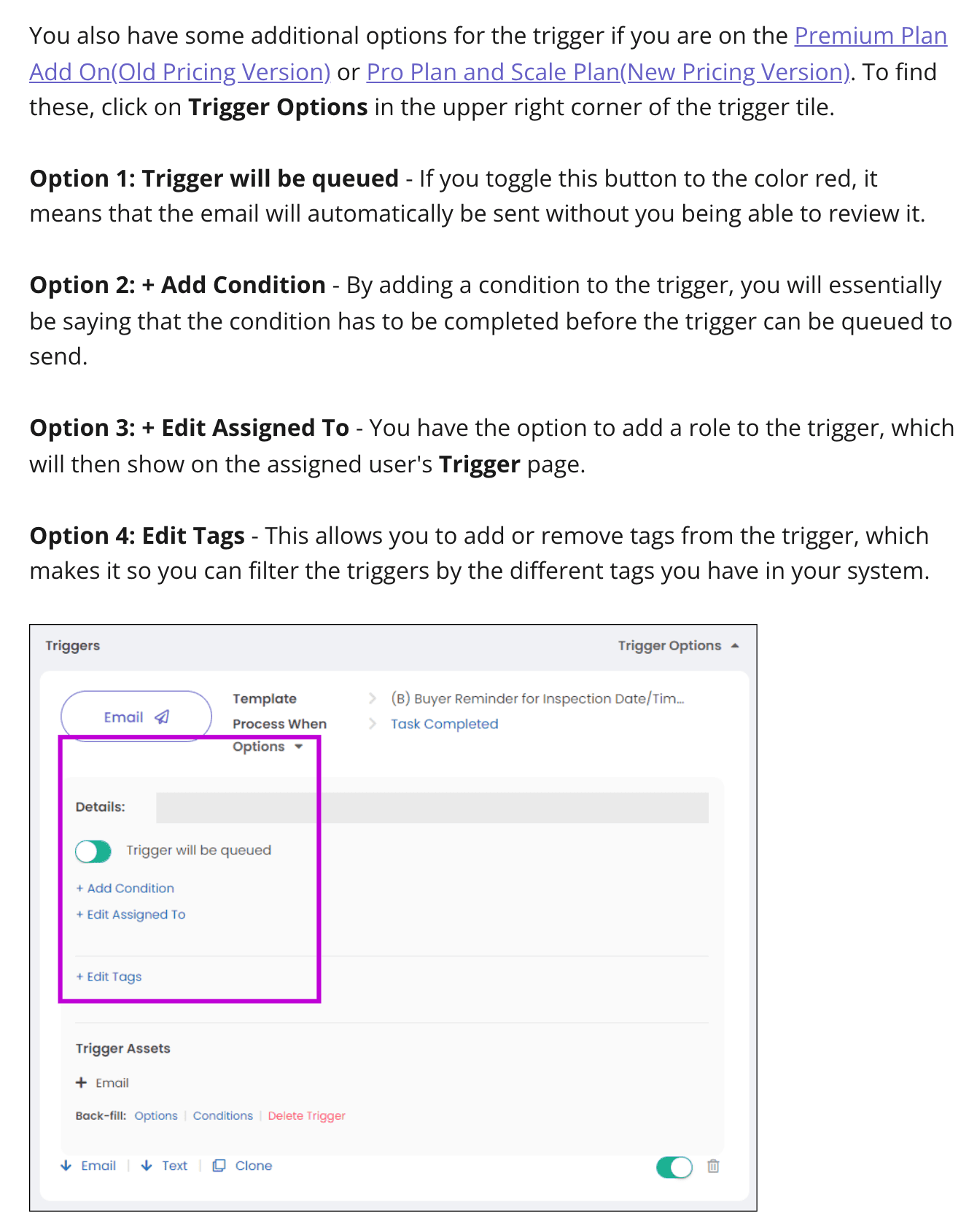
The decision that matters is in one toggle. By default a fired trigger is queued, and the email or text waits on the Trigger Pipeline until a person sends it. On Pro and Scale you can switch Trigger will be queued to red, and then, in the help page's words, “the email will automatically be sent without you being able to review it.” Conditions, which hold a trigger back until a field or role is right, sit in the Scale column alone on the pricing page, although the 2024 help page above still lists Add Condition among the Pro options. Go by the pricing page.
The Trigger Pipeline is where the queue lives: a board of columns from Immediately and Past Due through the next seven days. Each card lets you Inspect the rendered message with its merge fields filled, Edit the wording, or Send it now and bypass the automation. Inspect lists any missing merge items. You can snooze a card for up to four days, set a new due date, convert it to a plain scheduled email, deactivate it, or delete and restore it.
What happens when a date changes?
Change the field and the chain follows. If a task's due date is calculated from a date field and you update the field, the task moves, and a date template that calculates other dates from it moves them too. Closing a task also lets you set the real completion date, and child tasks contingent on it shift to match. The priority bar at the top of the property recalculates itself.
Not everything follows. Edits to a task template are not applied to files that already have it, so you reapply the template or fix the tasks on each property by hand. And a trigger email you have opened in Edit is frozen as rendered text, so “if you update any field values, it will not be reflected in the rendered email or text.” The help page tells you to fix the template's merge fields instead of editing the message. The amendment itself still has to be read by a person and typed in.
What happens when a task is skipped or a trigger fails?
A task that nobody completes is what the Task Not Completed trigger is for. You give it a contingency, three days after the due date for example, and it sends a text or email when the date passes. Task conditions and task locking, both Scale, stop a task being checked off until its conditions are met, and the condition can be deleted when you need to force it. Tasks always populate when a template is applied, whatever their conditions say.
Triggers carry a status you can read. In-Queue has passed every check and has a valid date. In-Process has failed a check or has no date. Failed could not send, and an email whose conditions were never met waits in the Failed tab under the property's priority bar. The pipeline filters by Conditions Not Met and Trigger with Error(s), and Open To Close's own instruction is to clear the red items before the day ends: “No red before bed.” One quirk to plan for: a recurring task reopens with its original due date, so it reappears already overdue. The workaround is to remove the due date and pin it.
What happens when an agent or client sends something unexpected?
Documents arrive into an approval queue. Anything an agent uploads through the portal or an intake form, or anyone emails to the property's own address, appears as an unapproved document for you to file, rename and approve or reject. Reject carefully: “Once a document has been rejected, there is no way for us to retrieve it.” Clients cannot act in the portal at all. Their access is read-only, so they cannot complete a task, change a date or leave a note.
Replies therefore come by email and text, and a person reads them. An inbound text shows at the notification bell and opens the contact's activity log, with an optional email copy. Email replies to your connected Google mailbox sync into the property by label, and Scan Emails pulls attachments out of them. None of that drafts an answer, decides whether the lender's “should be fine” counts as clear to close, or chases again when nobody replies. DeedSpring's coordinator reads inbound email and texts on the closing, drafts the reply for you to send, keeps chasing until the item is confirmed in writing, and asks you when it is unsure.
Who should buy Open To Close?
A transaction coordinator or TC team that runs many files, wants to own every template and trigger, and will put in the setup the guide describes. Buy Pro. Grow's three task triggers and queue-only sending make it a trial plan with a price, so the real starting price is $199 a month, $268 for two seats. Buy Scale at $399 if you need conditions, task locking or property triggers. Signing arrives on Pro as a DocuSign integration, so you need DocuSign as well. Against ListedKit or Trackxi, the thing to test is the trigger queue: Open To Close shows you the rendered message before it goes, on any plan.
Who should buy DeedSpring instead?
An agent or a small team with a few closings a month, or anyone who wants the coordination done rather than configured. Open To Close gives you the tools to build a coordinator. DeedSpring ships with one. Upload the executed contract and it reads the key terms and dates into a playbook of milestones and tasks. It checks every active file every hour, flags what is slipping, chases the lender and the title company, and drafts the client updates for you to send. Anything sensitive or negotiable is always a draft. Your buyers and sellers get a portal, and e-signing is built in.