Migration guide · Product guides, pricing and migration
Import dotloop transactions into Open To Close: setup and verification
Open To Close imports one dotloop loop at a time: the field values you tick, the contacts you give a role, and the documents you file one by one. Tasks, signatures, review stages and the activity log stay in dotloop, and only property fields sync afterwards. Here is the setup, the first import, the checks and the way back.
What arrives from a loop, and what stays in dotloop?
Open To Close describes its Dotloop integration in a sentence: it lets you import and export details, contacts and documents. Its help pages on the subject, ten of them, add nothing to that list. So the loop you bring across is three things, each imported by its own button, and everything dotloop wrote about the file while you worked it stays where it is.
The move inventory: each part of a dotloop loop and what Open To Close does with it
| In the loop | Arrives in Open To Close? | How | Watch for |
|---|---|---|---|
| Loop details | Yes, the field values you tick. | Pick the loop at import, or Import Details later, with a field map template. | A value already in Open To Close is overwritten. |
| Client type and status | You set them at import. | Required fields on the Details tab. | dotloop's loop status is what its own filters hide by. Set it there too. |
| People | Yes, with a role you assign. | Contacts tab at import, or Import Contacts once the property is linked. | A matching contact is updated per your Dotloop Settings defaults. |
| Documents | Yes, one at a time, after the loop. | Import Documents into a folder, with a File Role. | A File Role replaces the file name. |
| Tasks | No. | Stay in dotloop. Its API only reads task lists. | Apply an Open To Close property template at import instead. |
| Signature status | No. | Stays on the signed PDF in dotloop. | Open To Close's signed and fully executed marks are set by hand. |
| Review stage and compliance notes | No. | Stay in dotloop. | Upload to Dotloop copies a file back so you can stay in compliance. |
| Activity log and templates | No. | Stay in dotloop. | Keep your dotloop access for the audit trail. |
The connection belongs to Open To Close. dotloop's own directory of 66 integrations does not list it, and the import changes nothing in the loop. Treat dotloop as the record for forms, signatures and broker review, and Open To Close as the place the work gets run. The keep-or-replace question is a separate article.
Who needs what access, and which plan?
One person connects. Signing in to dotloop from Open To Close authorizes it to reach every profile in that dotloop account, so connect from the login that can see the loops you want, usually the agent's or the team admin's. A second dotloop account can be added, but Open To Close makes you log out of dotloop, close the tab and delete every dotloop cookie first, and says the connection fails if you skip a step.
Dotloop Import is on all three Open To Close plans: Grow at $99 a month, Pro at $199 and Scale at $399, each with one user and $69 a month for each extra user. The CSV import tool, the Contacts and Properties CSV exports and API access are on all three as well. Webhooks start at Pro. The pricing article has the rest. One trial rule matters here: the help FAQ counts every Dotloop import as a trial transaction, deleted ones included, while CSV imports through the import tool do not count.
What do you set up before the first import?
Start in dotloop. The import reads the loop's details, and dotloop keeps those on the View Details page, the same place its forms autofill from. Fill the price, dates and parties there, set the transaction type, because it decides which detail fields and people roles the loop offers, and set the loop status. Anything blank in View Details has nothing to import.
Then build the API Field Map Template, which Open To Close recommends before the first import. It pairs each dotloop field with one of your fields, and each template is for one connected system. Open To Close does not publish the dotloop field list, but dotloop's public API shows what it exposes to any connected app: address with street number and name as separate fields, MLS number and parcel ID, purchase price, commission rate, splits and total, earnest money amount and who holds it, contract agreement and closing dates, inspection, offer, offer expiration and occupancy dates, plus listing and legal description fields. Map the dates and money first.
Two more settings. A property template bundles task, trigger, field, document and date templates and can be applied during the import, so the file lands with its checklist and deadlines in one pass. And under Global Settings, the Dotloop Settings decide whether a dotloop contact that matches one you already have overwrites it, and which attribute does the matching. Decide that before the first import. After it, a buyer's phone number may already have been replaced.
How do you run the first import?
Step 1: Connect dotloop
Settings, then Apps & API, then Authorize beside Dotloop, and sign in to dotloop when asked.
Step 2: Build the field map template
Under Templates, open API Field Map Templates, add one for Dotloop and assign each dotloop field to the Open To Close field it should fill.
Step 3: Start the import
Click + New, choose Import Dotloop, pick the dotloop profile, find the loop in the list and apply the field map before you click the arrow.
Step 4: Fill the Details tab
Team, Team User, a Property Title with no special characters, then Client Type and Status.
Step 5: Choose the people and a template
On the Contacts tab tick All or the ones you want, give each a role, and pick a Property Template if the file should arrive with tasks and dates.
Step 6: Click Import Loop and wait
The page says a few minutes, longer with documents.
Step 7: File the documents
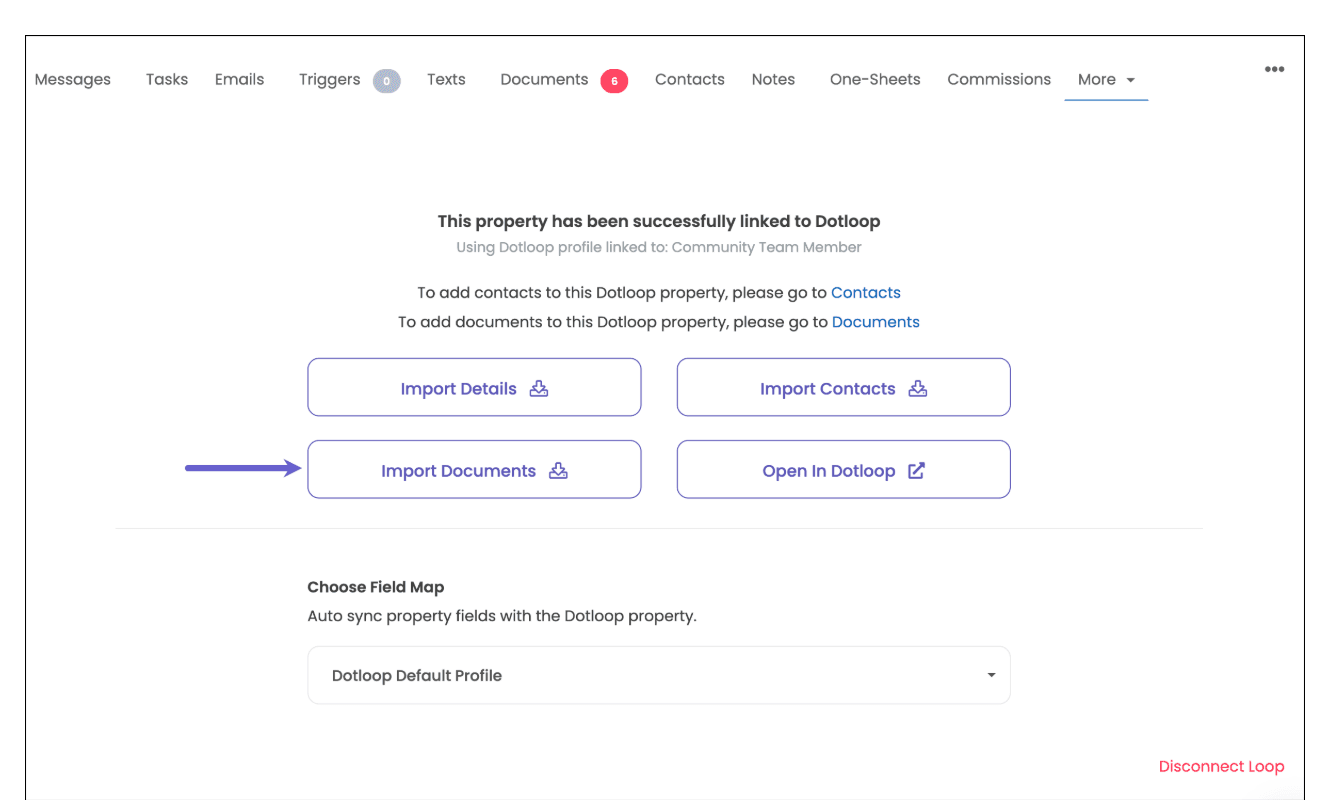
Open the property, choose Dotloop under More, click Import Documents, and put each file in a folder with a File Role.
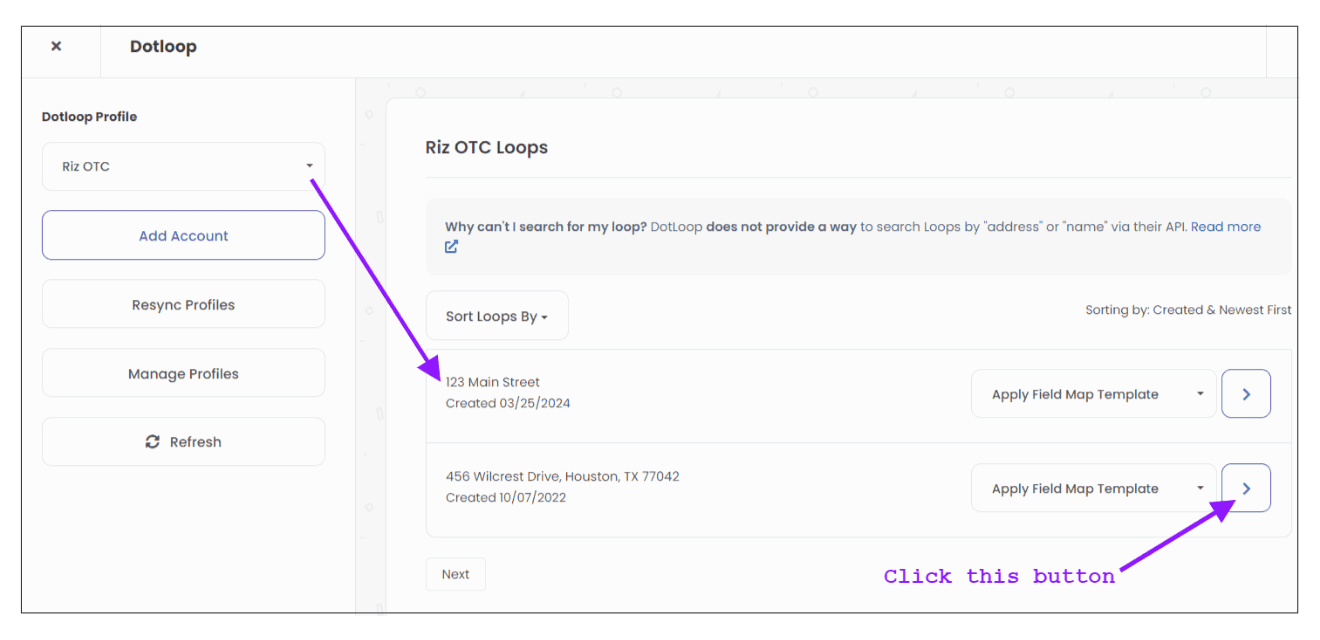
The picker is the slow part. The import dialog lists a profile's loops newest first and carries its own notice that dotloop "does not provide a way to search Loops by 'address' or 'name' via their API," so an old loop means paging through the list. Know roughly when the loop was created before you start. The Property Title rule is the other trap: Open To Close asks you to strip special characters "to avoid any error messages and lag issues," so an address with a # or an apostrophe needs editing before you click Import Loop.
Is it a sync after that?
No. Once a property is linked, Import Details, Import Contacts and Import Documents are buttons you press, and each one reads dotloop at that moment. The one thing that updates on its own is the set of property fields covered by the field map you chose, which Open To Close labels auto sync. Dates that change in dotloop reach Open To Close through that map or through pressing Import Details again, where every ticked field "will be overwritten." A document added to the loop next week arrives when someone imports it.
A property holds one link at a time, to Dotloop, SkySlope or Brokermint, and you disconnect one before connecting another. Traffic the other way is three separate actions. Export a Property creates a new loop with a loop type and status, so it is for files that start in Open To Close, not for the loop you just imported. Upload to Dotloop copies one file into a dotloop folder you choose, which Open To Close describes as the way to "stay in compliance." Add to Dotloop pushes a contact into the loop, with a dotloop role, because your Open To Close roles are not accepted there, and with the street number split from the street name.
What about closed loops, and the files still open?
Do not import closed loops one by one. Each costs a few minutes, a trip through the picker and a trial transaction. Open To Close's CSV import tool takes properties 250 to a spreadsheet, processes a sheet in up to an hour and emails you when it finishes, and it needs only a Contract Title, a Client Type and a Status that match your field options, plus a team and time zone. The spreadsheet can come from dotloop's Google Sheets sync through API Nation, which writes one row per loop with 91 fields, from the parties and their contact details to the address and the commission figures. The sheet carries fields and no files, so the signed PDFs for the archive travel the way exporting dotloop files describes.
Live files take the per-loop import, because that is the route that carries documents and contacts, and dotloop stays open on them until the last signature lands. The import gives Open To Close the paper and the parties. The deadlines come from the date templates you applied, and the chasing is yours to set up as triggers. If you would rather the coordination ran itself, upload the executed contract for each live closing to DeedSpring and it reads the price, deposits, contingencies and dates into deadlines on the file, then checks every open closing hourly and drafts the chases for you to send. DeedSpring's help page lists live Dotloop deals as a supported import its team sets up with you, so say which system and roughly how many records rather than re-keying.
How do you check the import?
Open the loop and the property side by side and read three things. Details: every field you ticked should match View Details, and any value that was already in Open To Close has now been replaced, so look at the ones you typed by hand before the import. People: each imported contact has the role you gave it, and any contact that already existed shows whichever version your Dotloop Settings told it to keep. Documents: the count in the property's folders should equal the count in the loop, remembering that a file given a File Role now carries the role's name rather than its own. If you applied a property template, check the dates last, because Open To Close warns that a template with a date template in it rewrites dates already on the file.
For the count across the whole move, the Properties table exports a CSV of the view you are on, up to 1,000 records, so filter to the imported batch and match the row count to your loop list. Open To Close's own setup guide has you link a test property and practice syncing documents to and from your integrations before the real ones, and that is the right order here: one loop, every check above, then the rest.
What do you do when it goes wrong?
An import that errors is usually the Property Title, so remove the special characters and try again. A loop you cannot find is in the wrong profile or further down the list, so try the picker's Resync Profiles and Refresh buttons before you page. A property that will not link to Dotloop already holds another link, which you disconnect first. The tasks a wrong template applied can be deleted from the transaction afterwards.
Rolling back is a property-level decision. Deleting a property in Open To Close is final: the help page says "it is gone and we do not have a way of retrieving it," and the deleted transaction still counts against a trial. Rejecting a document is final too. The loop, on the other hand, is untouched by any of this, because the import writes nothing to dotloop. Only Export a Property, Upload to Dotloop and Add to Dotloop do, so if you have used none of them, the worst case is deleting the property and importing the loop again.
Who runs the file once it is in Open To Close?
dotloop keeps the forms, the signatures and the broker's review. Open To Close is where you build the templates and triggers that run the file. DeedSpring is for the closings you want coordinated without building them: open a closing by uploading the executed contract and it reads the price, deposits, contingencies and dates into deadlines, checks every active file every hour, flags what is slipping and drafts the chases and client updates for you to send, with anything sensitive or negotiable always waiting for a person.