
Workflow · Product guides, pricing and migration
How dotloop works: loops, templates, tasks and compliance review
A loop is dotloop's file for one deal. Here is what each part holds and who controls it, what a loop template and a task list each do, how a folder gets through the admin's review, and the deadline work that stays with you.
What is a loop?
A loop is one transaction's workspace, and dotloop's advice is one loop per deal and address. Open one and you get four working areas. Documents, grouped in folders. People, each with a role. Tasks, as lists you type or load. And the Details tab, where the price, dates and parties live and where every autofilled form gets its data. Above them sit the loop's name, its transaction type and its status, and a link to the Activity Log that records everything anyone does inside it.
Anatomy of a loop: what each part holds, and who controls it
| Part of the loop | What it holds | Who sets it up | Where the plan or brokerage decides |
|---|---|---|---|
| Details | Property, price, dates and parties. Forms autofill from here. | The agent, or the linked MLS listing at creation. | A loop template can make fields required before submit. |
| Documents | Folders of PDFs and forms. Nothing deletes, only archives. | The agent, from Templates, an upload or an email-in. | Template folders and required documents come from a Teams or Business+ admin. |
| People | Everyone on the deal, with a role. Documents stay private until shared. | The agent adds them. Add to my team shares the whole loop. | Free accounts stop adding people 90 days after the loop opens. Add to my team needs Premium. |
| Tasks | Lists with an owner and a due date. A daily email reminder. | The agent types them or loads a template. | Task templates need Premium. Admin lists can be hidden or locked. |
| Review | Folders submitted into a workflow with review stages. | The admin profile builds the workflow. The agent submits. | Only an account attached to a brokerage or team can submit. |
| Activity Log | Every share, view, signature, submission and stage change, time-stamped. | Automatic. | Records what an admin did on behalf of an agent. |
Who does what in a loop?
The agent owns the loop. They create it, add documents and people, share for signature and submit folders for review. A client never needs an account. They open the email, sign, and share back, as long as each signer has their own email address. A co-op agent gets a document shared with Can Edit in Private and works it from their own account. A transaction coordinator or partner agent gets in through Add to my team, which shares every document, person and task in that loop and cannot be undone for that loop.
Above the agent sits the admin profile, labelled Teams or Business+ in the top left. It builds the templates and workflows and does the reviewing, and it is added to a loop automatically when an agent accepts that loop into a brokerage-attached profile. A Teams admin can also step into an agent's profile and work as them. Anything signed that way is the admin's own signature, the agent can switch the access off, and the log records it as on behalf of.
How does a loop get created?
Click +Add Loop and name it. dotloop suggests the property address, and whoever you share documents with will see that first name even if you rename the loop later. Start typing the address or MLS number and dotloop offers three ways to link the property: your MLS feed, a listing another dotloop agent has set to Active, or a Google address. Pick one and the Details fill from it. A linked listing cannot be unlinked. If your company or team provides loop templates you choose one next, and if the admin has required templates you cannot skip the step.
Then set the type. Purchase, Listing for sale, Listing for lease, Lease, Real estate other or Other decides which roles you can give people, which Details fields appear and how forms autofill. A Purchase loop then moves through Pre-offer, Under contract, Withdrawn, Sold or Terminated, and the status is what your filters read. Edit the Details tab later and you reapply autofill to any form already filled.
How do documents get in and get signed?
Open the folder and click Add Document. Templates copies your brokerage's or association's interactive forms, Browse uploads a PDF, and Email gives you a folder-specific address to forward attachments to. Once a document is in, it cannot be deleted. It can only be archived. A flat PDF becomes a signable form in the Document Editor, where you place signature, initial, text, date, checkbox, radio and strikethrough fields. Autofill only works on interactive forms from your brokerage, association or custom templates. Signature and initial fields default to Anyone. Text, date, checkbox and radio fields default to No One until you assign them.
Documents are private until shared. When you share you set a permission per person: View Only, Can Sign, Can Fill & Sign, or Can Edit in Private for another professional. Any edit to a signed document wipes the signatures, by design. The document then shows its state beside its name: Waiting On Others, Part Signed, Signed, or Updated when someone changed something outside their assigned fields. Signed copies come back to you automatically, and Document History keeps every version with a download link.
What do templates and task lists actually do?
Two different things share the word template. A loop template is the brokerage's or team's blueprint for a new loop, built in the admin profile on Teams and Business+. It decides the folders, the documents or placeholders in them, the people added automatically, the task lists loaded, and which documents and Details fields are required before the agent can click Submit for Review. Each folder can carry Set Workflow, so the folder submits to that workflow by default. A template starts disabled. The admin enables it, can make one global and hidden so it applies the moment an agent picks that transaction type, and can require every loop to use a template.
Two details trip teams up. Anyone named on a loop template must hold Premium, and they land in every loop built from it, but that does not put them on the loop team. The TC still has to be added with Add to my team after the loop exists. And the transaction type you pick for a template cannot be changed. dotloop's own advice is one template per transaction type, and one per state if the brokerage covers more than one.
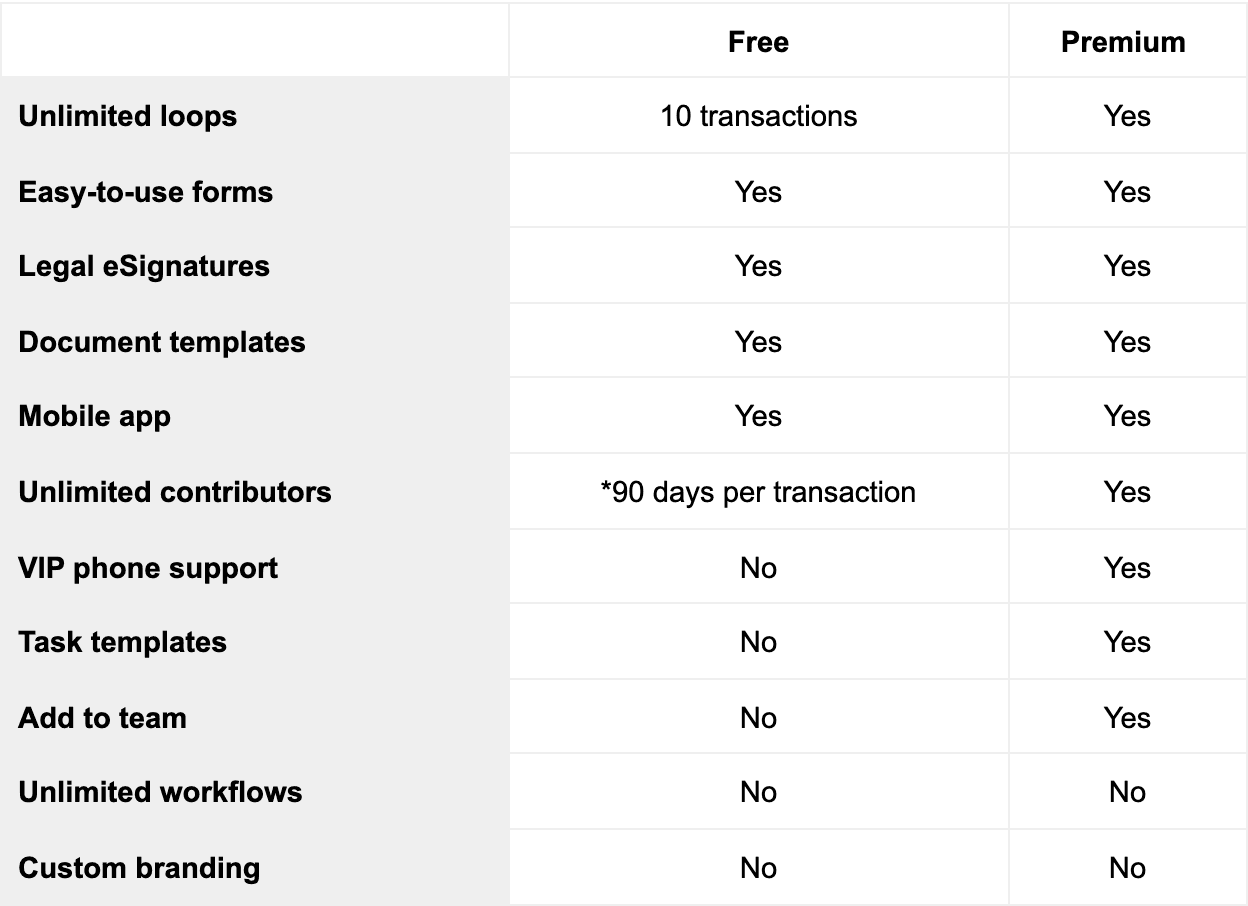
A task template is a reusable task list. Assign a task to a person on the list and that person is added to every loop the list is loaded into. A due date is either a fixed window or “due after another task on the list has been completed”, and whoever owns the task gets a daily email reminder. dotloop also writes an urgent task for you whenever a document has a field waiting for your signature. On a free account you get ten transactions and task lists, but no task templates. Task templates and Add to my team need Premium, the paid individual plan, and workflows and branding need a team or brokerage account.
How does compliance review work?
Review only exists when your account is attached to a brokerage or team. The agent ticks one or more folders and clicks Submit for Review. Whole folders go, never single documents, and anything already approved is left out. If the loop came from a template its workflow is already chosen. Otherwise you pick the workflow, and on some setups the office. Any required fields you skipped are asked for now. A TC added through Add to my team cannot press the button for you. Until that first submission the loop sits in no compliance stage at all.
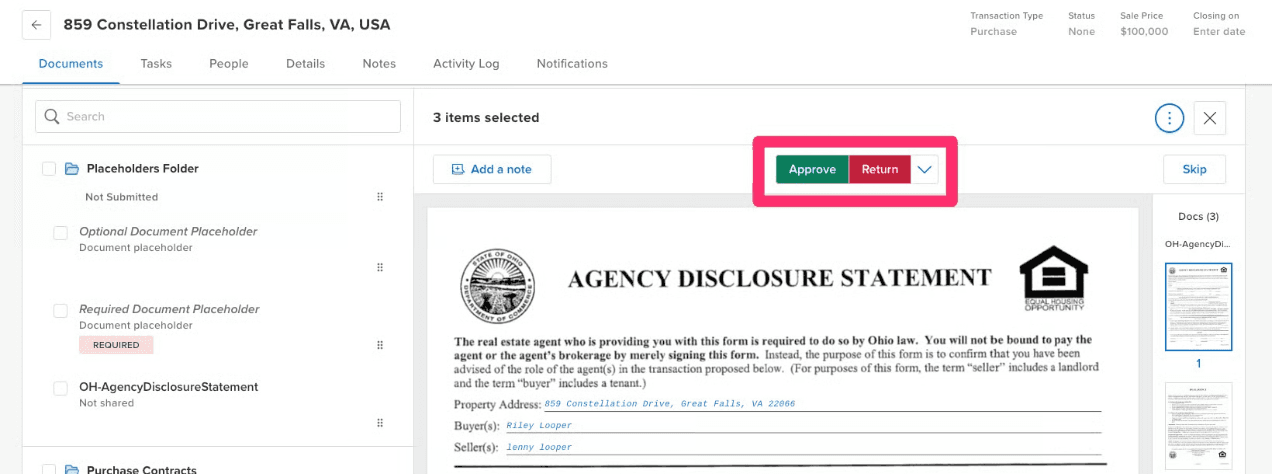
The admin opens the loop and clicks Review. Each submitted document comes up in turn with Approve or Return above it. A Return prompts for a note, pinned to a spot on the page, which emails the agent and can be replied to and resolved. The dropdown also offers No Review Needed and Revert to Needs Review. When the last document is decided the admin clicks Done and picks the folder's review stage from the brokerage's own list, and that stage change is what emails the agent. The workflows, their stages, the resubmit logic and who gets notified are all built by the admin in Templates. A team nested under a brokerage reviews first and then submits the folder onward to the office.
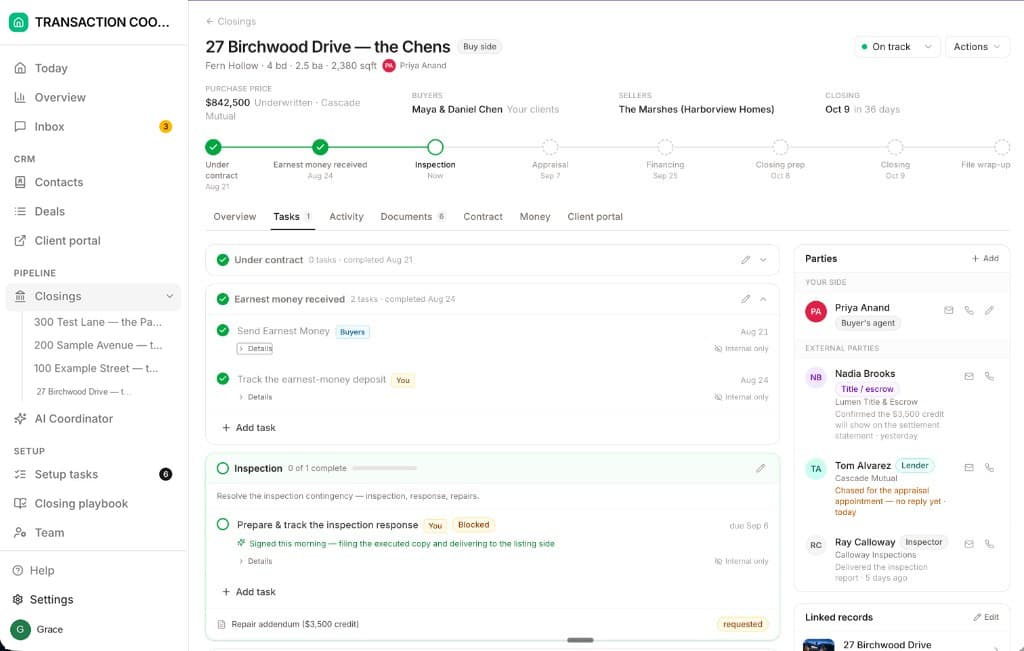
What review checks is the paperwork in the folder. The dates live on the Details tab because someone typed them, and the tasks send a daily email because someone set a due date. Nothing in the Details tab or the task list reads the inspection period out of the executed contract, counts the days, or emails the lender when the appraisal slips. That is the coordinator's job, and it is what DeedSpring does beside dotloop: it reads the executed contract into deadlines, watches them every hour, and drafts the chase for you to send.
One purchase loop, start to finish
One buyer-side loop on a brokerage account, from the executed contract to an approved folder. The agent does the first five steps, the admin reviews at the sixth, and steps five to seven repeat until the folder's stage reads approved.
Step 1: Open the loop
Click +Add Loop, name it by the address, link the listing, pick the brokerage's Purchase template, and set the type to Purchase and the status to Under contract.
Step 2: Fill the Details tab
Type the price, parties and dates, because every autofilled form reads from here. Change one later and reapply autofill to the forms already filled.
Step 3: Add the documents
Copy the association forms from Templates, upload the rest as PDFs, or forward them to the folder's own email address.
Step 4: Share for signature
Assign each signature field, share with Can Sign or Can Fill & Sign, and watch the status move from Waiting On Others to Signed.
- If it fails
- A share that fails shows “something went wrong” in the Activity Log. Check the spelling of the email address and reshare.
Step 5: Submit the folder for review
Tick the folder, keep the workflow the template chose, fill any required fields, and add a note if the admin needs context.
- Owner
- The agent. A TC on the loop team cannot.
Step 6: Approve or return each document
Return carries a note that emails the agent. Done sets the folder's review stage, and the stage change emails the agent again.
- Owner
- Admin profile, Teams or Business+
Step 7: Fix and resubmit
Open the note, correct or replace the document, and submit the folder again. If the admin set resubmit logic, the folder lands in the stage they chose for resubmits, Needs Review in dotloop's example, and already-approved documents are skipped.
- If it fails
- Leave approved documents where they are. dotloop says not to move one within or out of its folder once it is approved.
Step 8: Close out
Set the status to Sold. Documents archive rather than delete, and the Activity Log keeps the whole history.
The job dotloop leaves to you
dotloop is where the forms get signed and the folder gets checked. DeedSpring is the coordinator who makes sure the deal behind the folder shows up on time. Upload the executed contract and it reads the price, deposits, contingencies and dates into deadlines on the file. It checks every open closing every hour, flags what is slipping, and drafts the chases and client updates for you to send, with anything sensitive or negotiable always waiting for a person. Your buyers and sellers get a portal, e-signing is built in, and if your brokerage mandates dotloop it will key the closing into your loop for you on request.
Starter is $15 a month for one closing a month. Standard is $25 a closing, down to $19 at volume, with unlimited agents and teammates and unused closings rolling over. Both are month to month.