
Migration guide · Product guides, pricing and migration
Migrating to Follow Up Boss: contacts, notes and history that may not transfer
Follow Up Boss imports contacts, notes, tags, stages, custom fields and the assigned agent from one CSV. Deals, tasks, action plans, emails and call recordings never import, and call history arrives as notes. What moves, who can run it, how duplicates are decided, and how to prove the count before you cancel the old CRM.
What moves into Follow Up Boss, and what stays behind?
Everything below runs through one tool, the CSV import under Admin. Follow Up Boss's own page on moving between two accounts is the ceiling: the same product on both ends, and still no tasks, appointments, action plans, templates, emails or lead activity make the trip.
The migration inventory: each part of a CRM database and how Follow Up Boss receives it
| In the old CRM | Imports? | How it arrives | Watch for |
|---|---|---|---|
| Contacts: names, phones, emails, addresses | Yes | One CSV through Admin, then Import. Up to six phones, six emails and six addresses each. | Anything past the sixth goes in a note. Date added can be set in the past. |
| Notes and background | Yes | Notes columns on the contact file, heading prepended. Or a second notes file from BoomTown, LionDesk or Copper. | BoomTown notes are dated the day you import them. |
| Call and text history | As notes | Call and text logs with date and time become notes on the contact. | Not calls. The BoomTown file carries no number called and no caller. |
| Tags, stage and lead source | Yes | Tags split on comma, semicolon or pipe. Source defaults to Import if unmapped. | Importing never creates a stage. An unknown stage becomes an Imported Stage tag. |
| Assigned agent and lender | Yes | From a column matching the user's name exactly, or one agent for the whole file. | New contacts only. A contact already in the account keeps its agent and stage. |
| Custom fields | Yes | Mapped to an existing field, or created on import as date, number, text or drop-down. | An import overwrites custom field data on existing contacts. |
| Relationships (spouse, family) | Yes | Up to six per row, each with name, type, phone, email, address. | A FUB export carries four per contact, spouses first. |
| Deals and transactions | No | Create each by hand with price, close date, contacts, commission and splits. | The Lofty API integration does sync transactions, for contacts assigned to you. |
| Tasks, appointments, collaborators | No | Rebuild. Collaborators can ride in a custom field, then mass actions. | Appointments do not move even between two FUB accounts. |
| Action plans and templates | No | Rebuild. Between two FUB accounts, share publicly to the library and copy. | Admins only. A copied plan brings its email templates. |
| Emails | No | They stay in the mailbox that sent and received them. | Connect that mailbox to the new account. |
| Call recordings | No | A FUB recording downloads one call at a time on desktop. Nothing bulk. | A recording made in another CRM has no route in on any page. |
Who can run the import, and does Follow Up Boss do it for you?
Anyone can. The owner and admins import contacts and see every import on the account. Every other role imports too but sees only its own, and the owner alone manages custom stages and custom fields. Have the owner create those before an agent uploads anything, or the stages arrive as tags.
Follow Up Boss will also do it for you. The import help pages say to email the contacts file and notes file to [email protected], and by sending the file you acknowledge the contacts consented to be contacted by you. The migration page says the vendor imports your contacts at no cost on any plan. The pricing compare table is narrower: Import database from any CRM is checked on every plan, but Help importing contacts from current CRM has a dash on Grow and a check on Pro and Platform. On Grow, send the file and see. The pricing article has the plan detail.
The other end matters as much. Who may export, which contacts, and whether notes ride along differs by CRM. Our export policies comparison covers Lofty, BoldTrail, CINC and the rest, and Follow Up Boss has its own pages for LionDesk, Top Producer and Contactually.
How do you run the import?
Step 1: Export from the old CRM and count the rows
Write down the number of contacts and notes before you touch the file. Those counts are your proof later.
Step 2: Clean the file
One phone, email or address per column, labels in row one, your own email and phone removed, no emojis, no quotation marks in names, one sheet, saved as a CSV under 90 MB.
Step 3: Open Admin, then Import, and confirm consent
The first screen asks you to confirm the contacts opted in to be contacted, and the help page points at the TCPA for why.
Step 4: Map every column, or skip it
The top row is your header and the second row is the Follow Up Boss field. Notes and Background take as many columns as you like.
Step 5: Set the agent, the stage and a batch tag
Add a tag unique to this import, because the tag is how you find and reassign the whole batch afterwards.
Step 6: Upload the notes file second, if you have one
Contacts first, then the events file, or you get the message Event File Detected and start over. Large notes files take hours.
Three mapping decisions save a second pass. Groupings from the old CRM, like Contactually buckets, go to Tags. Dates go to a custom date field. A contact with more than six emails, phones or addresses gets the first six mapped and the rest in a Note. Several numbers in one cell split only on a pipe or a line break. Skip columns like Last Login and Viewed Properties, which are stale the day they land.
How do notes and call history come across?
Two ways. For any CRM, map as many columns as you like to Notes and the import writes one note per column, heading at the top. For BoomTown, LionDesk and Copper there is a second file: upload the contacts, then the notes export, and Follow Up Boss links each note to the right contact. A notes file from anywhere else fails with Failed to Import, and the page tells you to email both files to support.
What arrives is history with its shape changed. Call logs and text logs import as notes with their date and time, not as calls and texts. The BoomTown page adds the detail that decides whether your timeline is usable: the notes file has no date column, so every ordinary note is dated the moment you import it. Only the call notes carry a timestamp and are backdated, and those arrive as notes too. LionDesk click-to-call notes come in as a note labelled Call Note.
Deleting a two-file import removes the imported notes, including notes it added to contacts that already existed. Deleting a contact-file import does not undo what it merged into existing contacts. The delete option lasts 14 days.
What happens to duplicates and ownership?
Follow Up Boss merges on import when the email address matches an existing contact, or when the phone number and the first and last name match. A match is never duplicated. The agent and stage you choose at the last step apply to new contacts only. An existing contact keeps its agent and stage, and only the batch tag lands on everyone. Whatever the import adds to an existing contact stays even if you delete the import, so the Updated count is the one to read first.
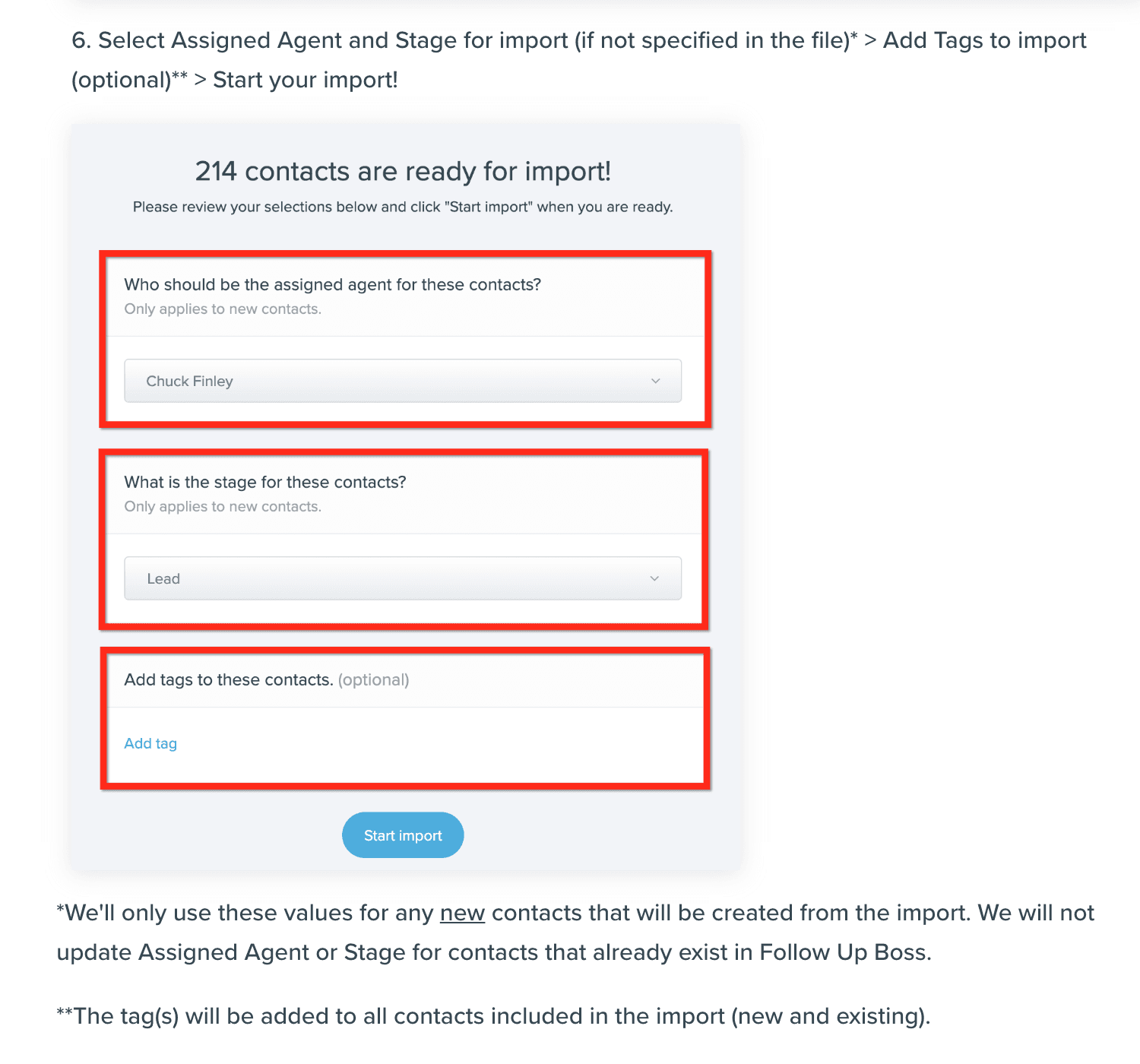
Who runs the import changes the rule. An owner or admin import always merges into existing leads. On Pro and Platform, the Agent-Owned Lead Duplication power-up lets an agent-role user import their own database and keep their leads as their own, even where another agent already holds the same person, up to ten profiles per email address. A lead assigned to the owner or an admin still merges. Turn it on for the agent's import and off again after. Decide before the upload whether a shared past client belongs to the team or the agent, because the import will decide for you.
Duplicates that slip through are fixed with a manual merge, up to ten contacts at a time. The contact you mark as main keeps its name, agent, lender, stage and running action plan. Notes and the rest move across, custom fields are not overwritten, and the merge cannot be undone. Unmerging means adding the person again by hand, without their past conversations.
What about deals, action plans, files and recordings?
Deals do not import. Each one is created from the Deals tab or a contact, with a name, price, projected closing date, contacts, commission and splits, and team members, and non-admins see only the deals they are on. If you are leaving Lofty, its API integration with Follow Up Boss syncs calls, texts, notes, tasks and transactions for contacts assigned to you, which is more than the CSV carries. Connect it, let it sync, then disconnect before you cancel.
Action plans, email templates and text templates are rebuilt. Between two Follow Up Boss accounts an admin can share a plan publicly to the Action Plan Library and copy it into the new account, email templates included. A LionDesk campaign has no such route. Files attach to one profile or one deal at a time, at up to 100 MB each. Emails stay in the mailbox that sent them, so connect that mailbox to the new account. A call recording made in Follow Up Boss downloads one call at a time on desktop and never in bulk. A recording made anywhere else has no way in.
Phone numbers are the one thing to sequence. A LionDesk number ports in, and a Follow Up Boss number moving between accounts needs the original account kept active until the transfer completes. Cancel last.
How do you prove the import worked?
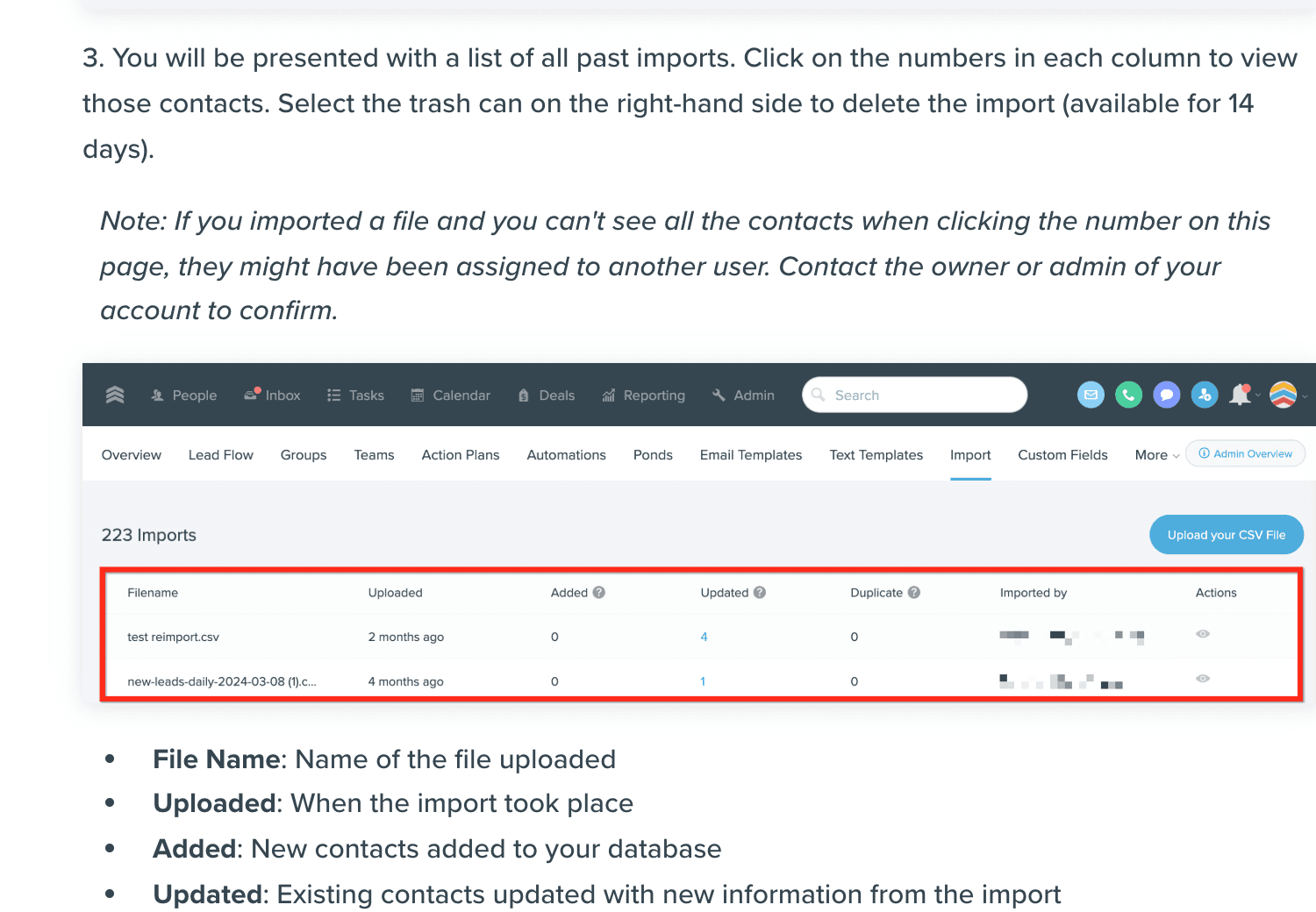
Follow Up Boss gives you three numbers per file on View Past Imports: Added, Updated and Duplicate. Click any of them to open those contacts. Do the checks the same day, while the 14-day delete window is open and the source export is fresh.
After the import
- Added + Updated + Duplicate equals the rows in your file.A gap is rows Follow Up Boss skipped. A contact you cannot see may be assigned to another user. An owner or admin sees all imports.
- Updated is the number you expected.Each one merged into an existing contact on email, or phone plus name. Open ten, because what it added cannot be taken back.
- No contact carries an Imported Agent or Imported Stage tag.Filter by each tag. Fix the agent or stage, then mass-assign.
- Five contacts with long histories have the right number of notes, with the right dates.A BoomTown note is dated the day of import. A LionDesk call note is a note marked Call Note.
- Nobody has a fresh Inquiry on their timeline.If they do, you mapped the Property Address fields. Delete the import and run it again without them.
- The old CRM is still live.Keep it until this list is clean, and until any phone number has finished porting.
For a second opinion, export the new database with Export All Columns and diff it against the file you uploaded. The export caps each contact at its most recent 50 calls, 50 texts and 50 notes, so a long history looks short on the way out even when it is complete inside.
When do you move the files under contract?
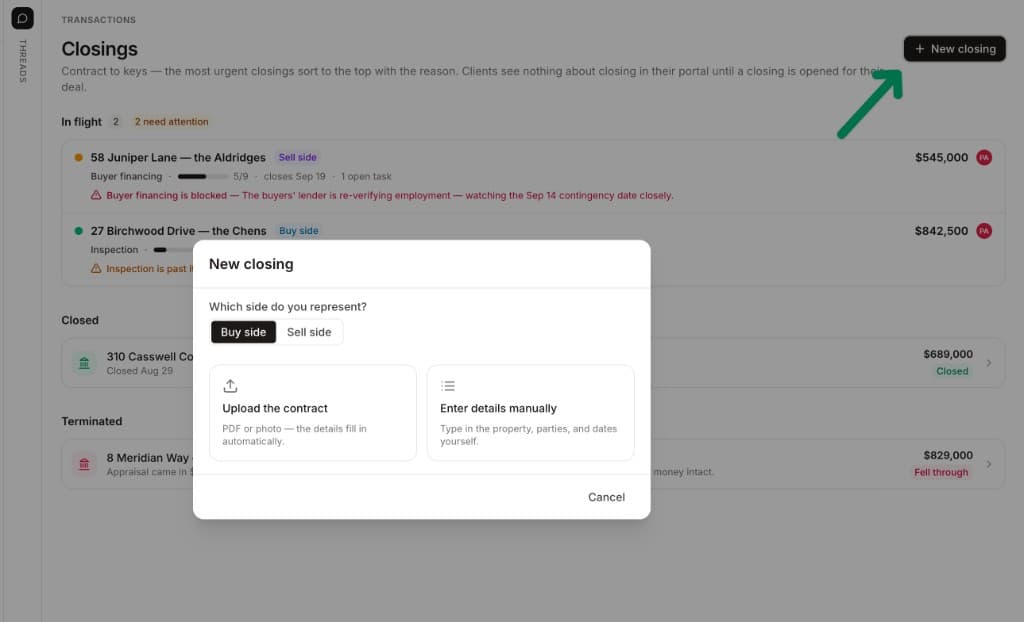
Last, and not into Follow Up Boss. A deal there is a card with a price, a close date and a stage, created by hand after the people are in. The contract dates, the lender's last email and who is waiting on whom are not in the contacts file you just imported. For each file under contract, upload the executed contract to DeedSpring and it reads the price, deposits, contingencies and dates into deadlines on the file, checks every active file every hour, and drafts the chases for you to send. DeedSpring lists Follow Up Boss among its data connections, and its help page lists live Follow Up Boss deals as a supported import its team sets up with you.
Where DeedSpring fits after the move
Follow Up Boss is now the database: the people, the notes you carried over, the sources and the stages. DeedSpring is the coordinator for the closings in flight and the ones that come next. It reads the executed contract into key terms and deadlines, checks every active file every hour, flags what is slipping, and drafts the chases and client updates for you to send, with anything sensitive or negotiable always waiting for a person. Your buyers and sellers get a portal, and e-signing is built in.