
Data
Data connections sync the systems that already hold your contacts, deals, and listings into DeedSpring tables. Open Data from Settings, or switch to Data Syncs on Integrations — it is the same list of connectors.
Choose Add Data Connection. Search, pick a card, then Connect. If the source is not listed, use Request a connector — new ones can be added within a day.
Connect a source
Open the dialog
Pick the connector
Map onto existing tables
What you can connect
CRMs
Sheets and files
Other tools on the list
Missing a connector?
After it is connected
Synced contacts behave like hand-entered ones: they can be deal members, get portal access, and show up in the Inbox. That only works if they land on the existing Contact table, not a side table with a similar name.
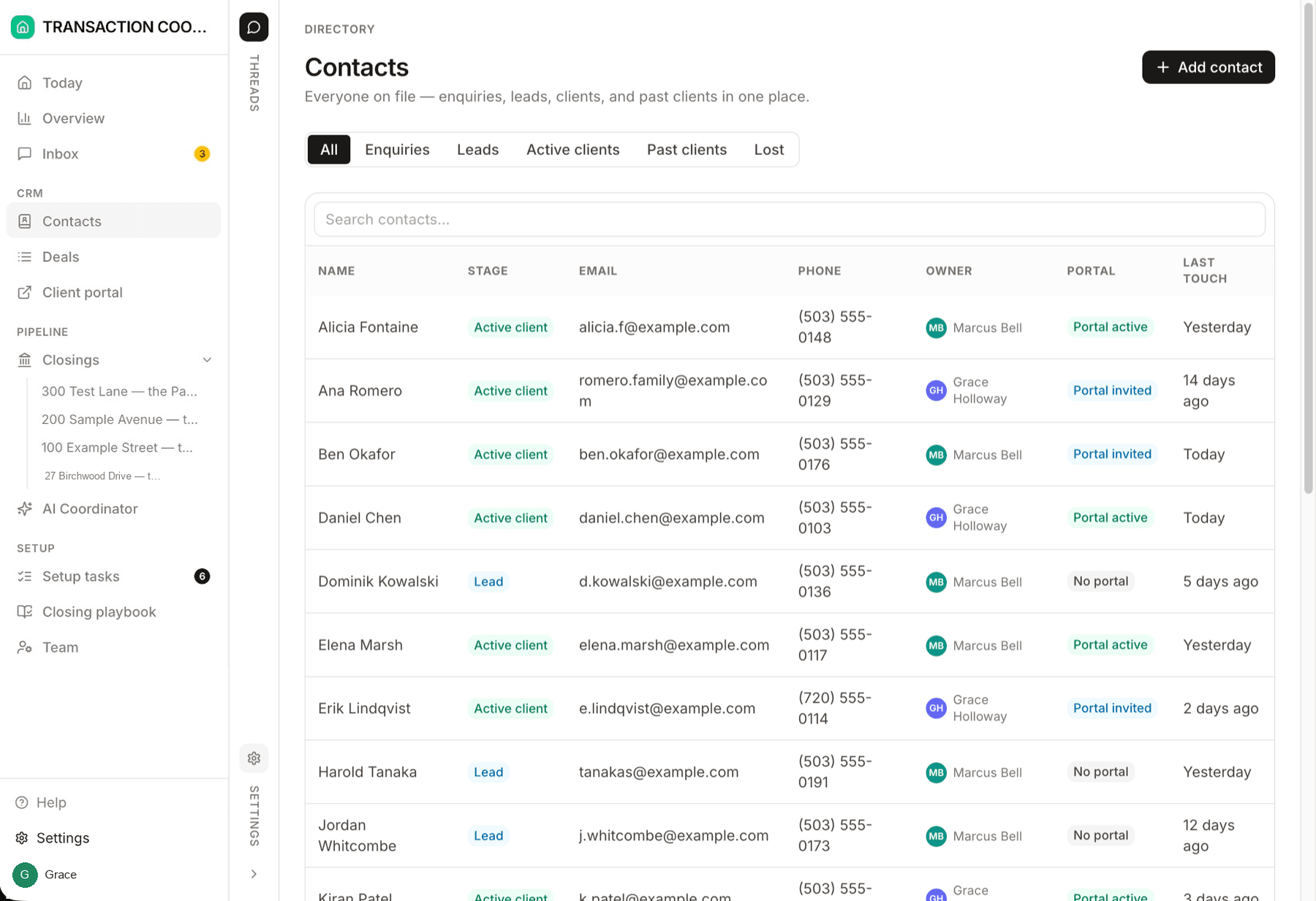
- Extend, don't fork — if your CRM has a field with no home here (say, a lead score), add it to the existing table.
- Watch for duplicates — if you connected a CRM and then import a spreadsheet, check what already synced before creating rows.
- Clear the sample data — when real rows land, you will be offered a chance to remove matching sample records. It always asks before deleting.
Sync direction is a real decision
Pulling from your CRM is safe to start with — DeedSpring stays a live mirror. Writing back means edits here flow out to the other system. When unsure, start pull-only and upgrade later.
What this screen does not do
- It does not let agents post to Slack or run actions in other apps. That is Agent Integrations.
- It does not replace adding a client to a deal or closing. Membership on those records is still what fills their portal.