
Inbox, email & SMS
Email, texts, and portal chat with clients and the other parties on a closing all run through DeedSpring, so every message lands on the file it belongs to and the AI coordinator can read it and draft the reply. The Inbox is where your team sees all of it in one place — and where anything waiting to be sent sits until someone approves it.
The Inbox
Inbox sits at the top of the sidebar, with Today, and is always on. Every conversation is a thread, grouped by day (Today, Yesterday, then dates), with a chip for who you're talking to — Client, a party's role (lender, title, inspector…), or External — and chips for the records the thread is filed on: the closing, the deal, the property, the contact. Three kinds of thread live side by side:
- Email — mail to and from the address the coordinator sends on, and from any teammate's connected Gmail. Threaded the way your mail client threads it.
- SMS — texts on the coordinator's number, where one is set up.
- Portal chat — messages clients post from their portal, tagged Buyer search or Listing. Only present when Messages is on under Config → Business → Client portal features.
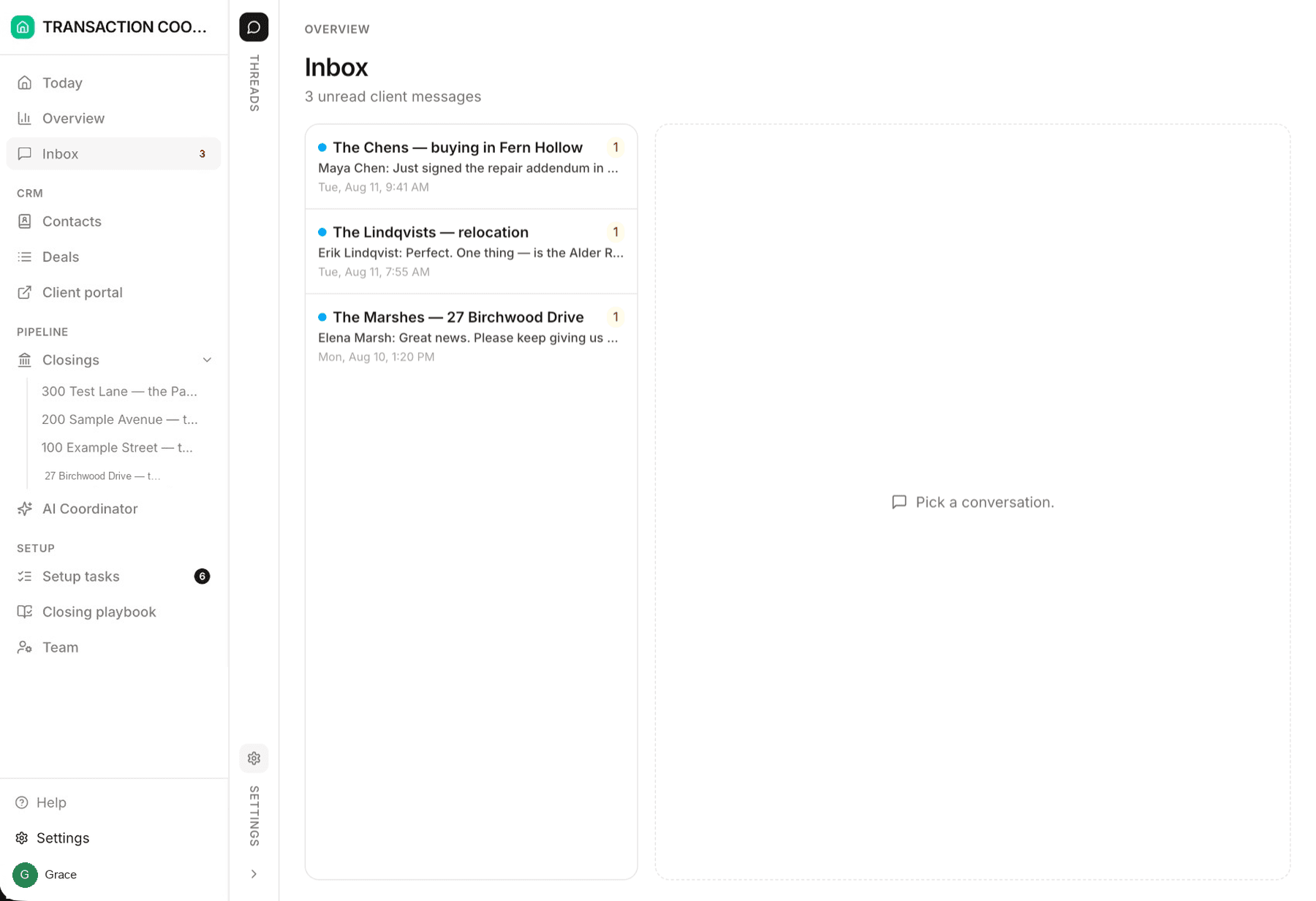
Two filters across the top. All carries a blue count of unread inbound messages; Drafts to review carries an amber count of everything waiting to be sent. The same two numbers are the badges on Inbox in the sidebar.
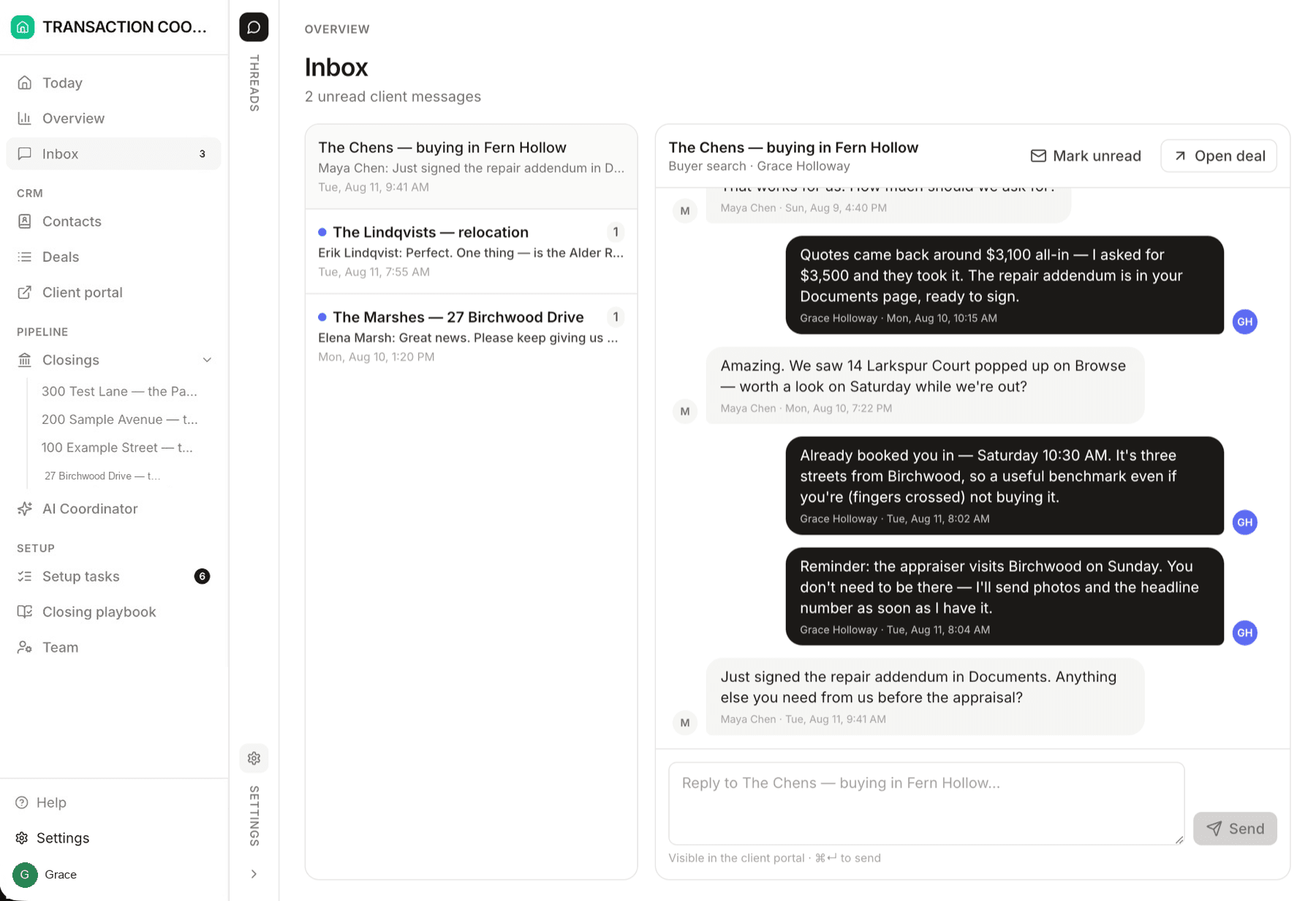
Nothing is opened for you. Clicking into a thread marks its inbound messages read; the thread header offers Mark unread to flag it for later. Previews say who wrote the last line — AI draft:, Draft:, AI:, You: — so you can tell at a glance whether a thread needs a person.
Replying
- On a portal thread, type and Send — the client sees it in their portal (and gets an email nudge from the included automation).
- On an email or SMS thread the composer has a From line — pick any address you may send from (your connected Gmail, the coordinator's address, a shared mailbox), a To line that autocompletes the people on the record, a subject for email, and attachments. Send goes now; Save draft parks it in the outbox for a colleague or for later.
The same threads appear on the Messages tab of the closing they're filed on — see Tracking closings — so you can read and reply without leaving the file.
The outbox: reviewing what the coordinator wrote
The outbox is not a separate place. A draft the AI coordinator (or an automation, or a teammate) left waiting shows on its own thread with a Draft to review marker, and the draft itself sits at the end of the thread. Filter to Drafts to review to work through them.
Read it in context
Send, Edit, or Discard
Or hand it back
Drafts also surface on Today under Needs you (as Draft to review, Sending, or Send failed), on each closing's Overview, and in the I need you on… banner on the AI Coordinator page — whichever you happen to be looking at.
Connecting your Gmail
Connect your own Gmail account and the mail you send and receive lands on the right closing automatically, the coordinator can read it, and its replies are drafted in your inbox for you to send. Each teammate connects their own mailbox. Two places to do it:
- Config → Email & SMS → Connect a Gmail account.
- The Connect your Gmail banner on the AI Coordinator page, which appears until you have connected one (or dismiss it).
You sign in with Google and grant access; you come straight back to where you were. Inbound mail is matched to the people on your closings by their email addresses, so a message from the lender on a file is threaded onto that file. Anything the platform cannot place still arrives in the Inbox, and the coordinator's per-conversation thread files it onto the closing it belongs to.
What happens to your existing mail
When a mailbox is connected the platform imports the last 90 days of mail so the files have their context. Imported messages are marked imported in the thread, keep the date and time they were originally received, are never shown as unread, and do not wake the coordinator — it will not start replying to last month's mail. Only new mail from the moment of connection is treated as new.
Disconnecting (Config → Email & SMS) stops the sync. Messages already in the Inbox stay, and you can connect again at any time.
The coordinator's own addresses
The coordinator has its own email address — and a phone number for texts, where one is set up from the platform's Messaging page. These are what it sends from when it chases a lender or updates a client, and what those people reply to. You can see them on the AI Coordinator page under Where I write from, rename the display name under Config → Email & SMS → Coordinator's addresses, and decide for each whether it may send by itself.
Deciding what it may send by itself
Config → AI coordinator → Sending on its own has one control per channel — Portal chat and each of the coordinator's addresses:
- Approve first — the default on every new workspace. Everything it writes is a draft in the outbox; a person sends it.
- Sends itself — routine messages (confirmations, reminders, status updates) go out under its name without waiting.
On the AI Coordinator page the same setting reads You approve or I send next to each address (Paused if the address is switched off on the Messaging page). Whatever you choose, anything sensitive or negotiable is always a draft — see Meet your AI coordinator.
Sample workspaces come with a safe sandbox
Where the messaging simulator is available, the sample brokerage installs a simulated email address and text number for the coordinator plus a Mailbox Simulator that role-plays clients and third parties replying. Nothing sent through it reaches a real person, so you can watch the whole loop — chase, reply, draft, approve — before connecting anything real. Sample contacts use reserved example addresses that are never emailed.
Advanced messaging settings
Phone numbers, pausing an address, sharing a mailbox with the team, choosing which contact fields inbound mail is matched against, and the test simulator live on the platform's Messaging page — reach it from Config → Email & SMS → Open Messaging.