
Team
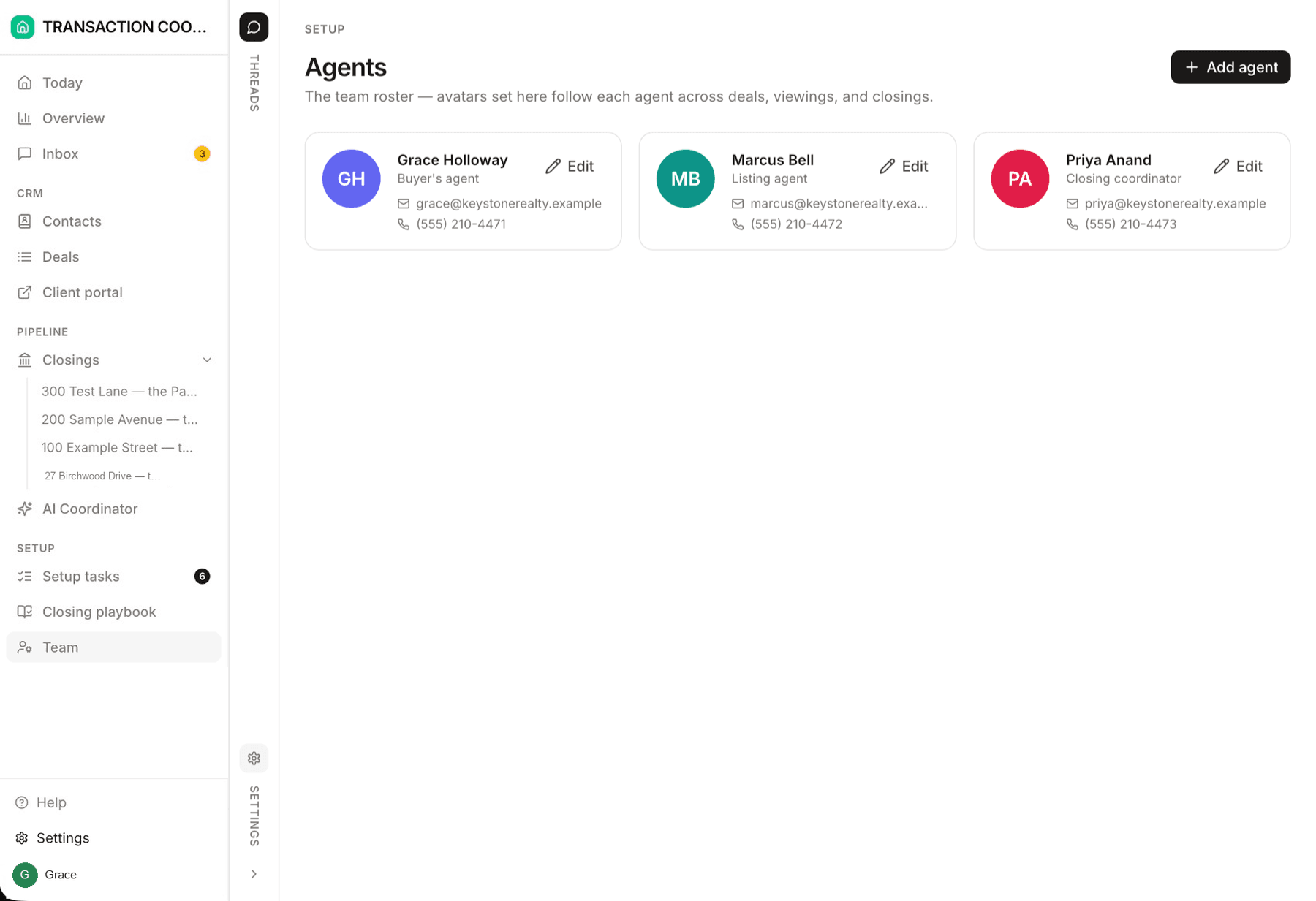
Team is where you manage the agents in your workspace — the people deals get assigned to and the faces your clients see in the portal. Add someone, update their details, or take them off the roster.
Teams, roles, and Overview
Team is the roster: who exists, how they appear, and which deals they own. For a larger brokerage — teams, who can see which files, and the Overview page — see Teams & permissions.
What the roster powers
- Deal assignment — every deal's Agent field and every closing's Assigned agent field pick from this roster. (The AI Transaction Coordinator is a different actor and isn't on it.)
- Sharing — the grid under Config → Sharing matches a teammate's sign-in email to their roster record to work out which closings, deals, and clients are theirs (and which are their team's).
- The client experience — the "your agent" card in the client portal (name, photo, phone, email) comes straight from the assigned agent's record.
- Notifications — when a client messages from their portal, the email nudge goes to the deal's assigned agent, at the email on their roster record.
- Showings — each showing records which roster agent is hosting.
Adding someone
Open Team and add a record
Fill in the essentials
Give them a face
Assign their deals
Prefer to delegate? Tell the assistant: "Add Dana Reyes to the roster — listing agent, [email protected], 555-0142 — and assign her the Alder Row listing."
Roster agents vs. workspace members
These are two different things, and the distinction matters:
- A roster agent is a record on Team. It powers assignment and the client-facing cards — but a roster record by itself doesn't let anyone sign in.
- A workspace member is someone invited to sign in to your workspace, from Users in Settings. Members can see and work the pipeline.
Most teammates should be both: on the roster so deals can be assigned to them, and a member so they can sign in. But they don't have to be — a part-time photographer might be on the roster (so showings can name a host) without ever signing in.
Replacing the sample roster
Your workspace ships with a sample roster. The Set up your team setup task replaces it with your real team in one conversation — the assistant collects names, roles, and contact details, swaps out the sample people (asking before it deletes anything), and reassigns any live deals to the right owners.