
Setting up your closing playbook
Playbooks are your brokerage's operating models for a closing — the milestones, tasks, timings, and owners written down once. Every new closing starts from one of them, so nobody has to rebuild the process from memory.
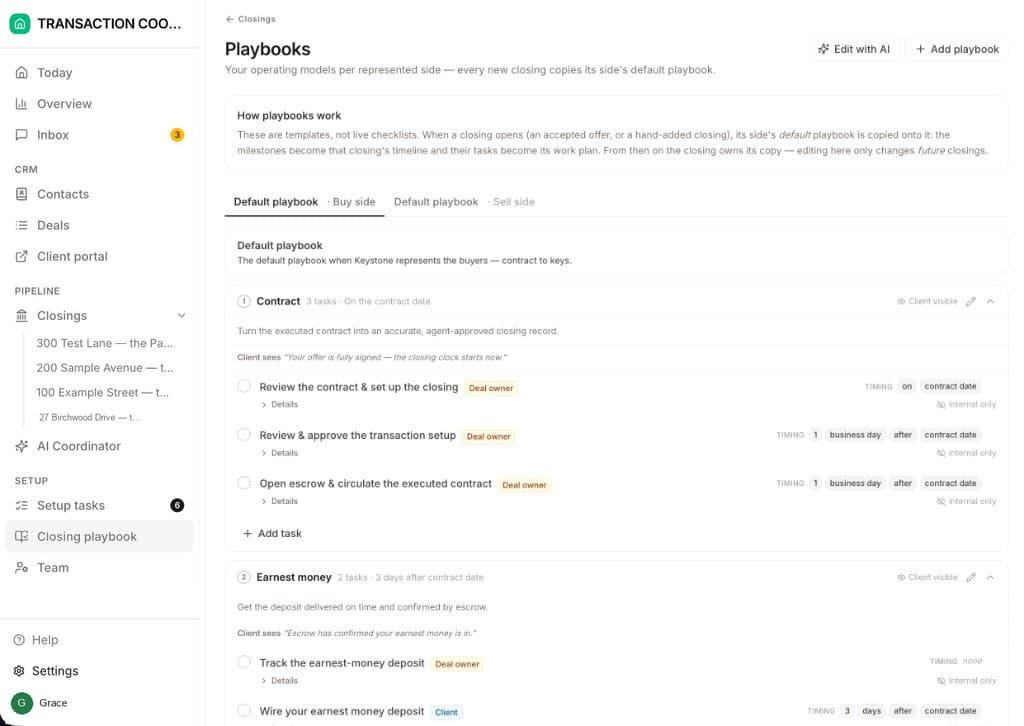
Two defaults, one per side
The closing playbooks live at Config → Playbooks → Closing playbooks (the lead and deal playbooks have pages of their own beside it). You arrive with two ready-made playbooks:
- Default playbook · Buy — the process when you represent the buyers: financing, appraisal, inspection response, and the rest of the buyer-side chain.
- Default playbook · Sell — the process when you represent the sellers: disclosures, repair negotiation, payoff, and proceeds.
The two defaults are written for your state. The state you gave during onboarding picks the pair — Default playbook — Texas, say — with that state's contract form, contingency calendar, and disclosure steps already in the milestones and tasks; every US state and DC has one. Change the state during onboarding and the defaults are swapped in place. Outside the US you get a generic pair to shape from.
When a closing opens, its side's default playbook is copied onto it as a live milestone chain. Editing a playbook only changes future closings — each transaction owns its own copy from the moment it's created.
Add playbooks for other transaction types
A side can carry more than one playbook. Use Add playbook when you have a typical process that isn't the default — cash purchases, new construction, short sales, a different state's contingency calendar. Give it a name and a short "when to use" description so your team can tell them apart.
The playbook whose name starts with Default is what new closings get automatically for that side. Extra playbooks are there when you choose: when you drop a contract into a thread (or open a closing by hand), you can pick the matching playbook instead of the default.
What each playbook holds
Milestones in order
Default tasks under each milestone
Client-facing wording
Customize on the transaction, not the template
The playbook is a starting point. Once a closing exists, every milestone and task on its detail page can be renamed, re-dated, added, or waived for that transaction alone — the template and every other closing stay untouched. Change the playbook when the pattern is permanent; change the closing when the deal is just being a deal. See Tracking closings.
Let the assistant shape the playbook with you
You don't have to fill in the tables by hand. Use Edit with AI on the Closing playbooks page — or the setup task for defining your closing process — and describe how your brokerage works. The assistant renames milestones, moves timings, sets audiences, and writes the client-facing lines. You can also ask later: "add a title-review step ten days after contract, internal only."