
Workspace vs. client portal
DeedSpring is one system with two front doors: the workspace for your team, and one client portal for every buyer and seller. The portal is not a separate product per side — it is the same branded login, and each person sees the pages that match their contact roles and the navigation items you have turned on in Config.
The workspace: everything, for your team
The workspace shows every record with every field: internal notes, deal health, risk flags, commission-relevant numbers, other clients' deals. It's the operating desk. Only people you invite to your workspace can sign in to it — clients can't, and there is no path from the client portal into it.
The portal: one login, a view per client
There is a single client portal. Every client uses the same login link. After they sign in, DeedSpring filters the same records down to that person:
- They see only the deals they are a member of, and only client-appropriate fields on those deals.
- Buyer and Seller roles on the contact pick which side of the experience they get — both, if they are doing both.
- Config decides which navigation items exist at all: showings, offers, browse homes, listing pages, portal messages, and so on. Turn a feature off and that page disappears for everyone.
- Internal notes, risk assessments, and other clients' data are never sent to the portal.
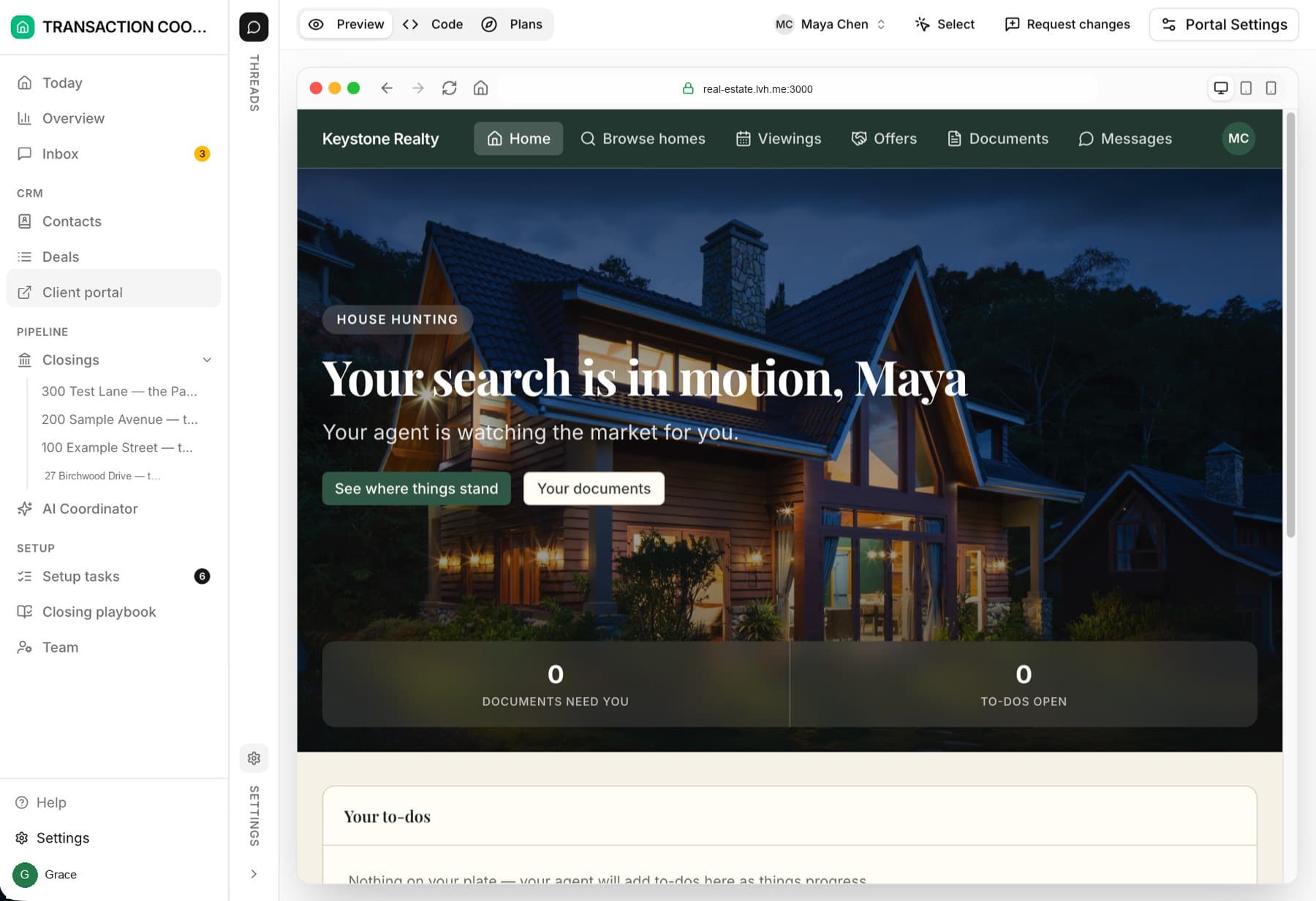
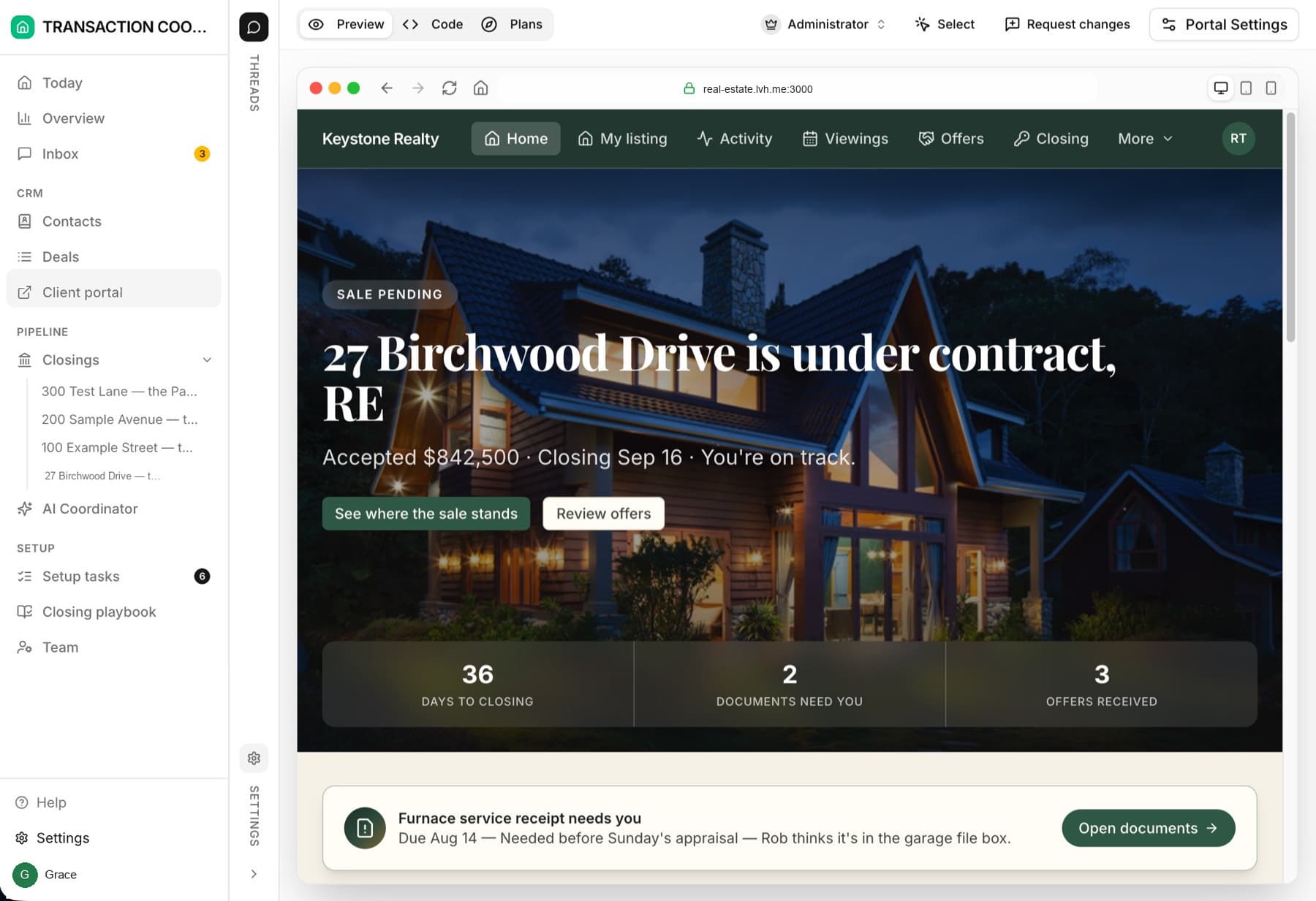
Who sees what
Buyers see
Sellers see
Both audiences never see
Your team sees
How the portal view is decided
Four things shape what a signed-in client gets:
- Roles on the contact — Buyer and/or Seller decide which side of the one portal they land in. A contact who is both (selling one home, buying another) sees both sides in the same session.
- Config — under Setup, Config is where you pick which navigation items show in the workspace and in the portal. Representation (buy side, sell side, or both) decides which pipelines exist; feature switches add or hide pages such as Showings, Offers, Browse homes, and My listing. Turning a switch off hides the nav — it does not delete the records.
- Membership on deals — a client sees a deal only if they are listed in the deal's Members field. Couples buying together are both members of the same deal and see the same portal content for it.
- Audience settings on milestones — each step of a closing timeline is marked Everyone, Buyer side, Seller side, or Internal only, so each side sees a timeline written for them.
One database, zero syncing
Because the workspace and portal read the same records, a change made in one place is live everywhere immediately. When you update the closing date, the client's countdown updates. When a client uploads a document from their portal, it's on the closing record before they've closed the tab.