
A tour of your workspace
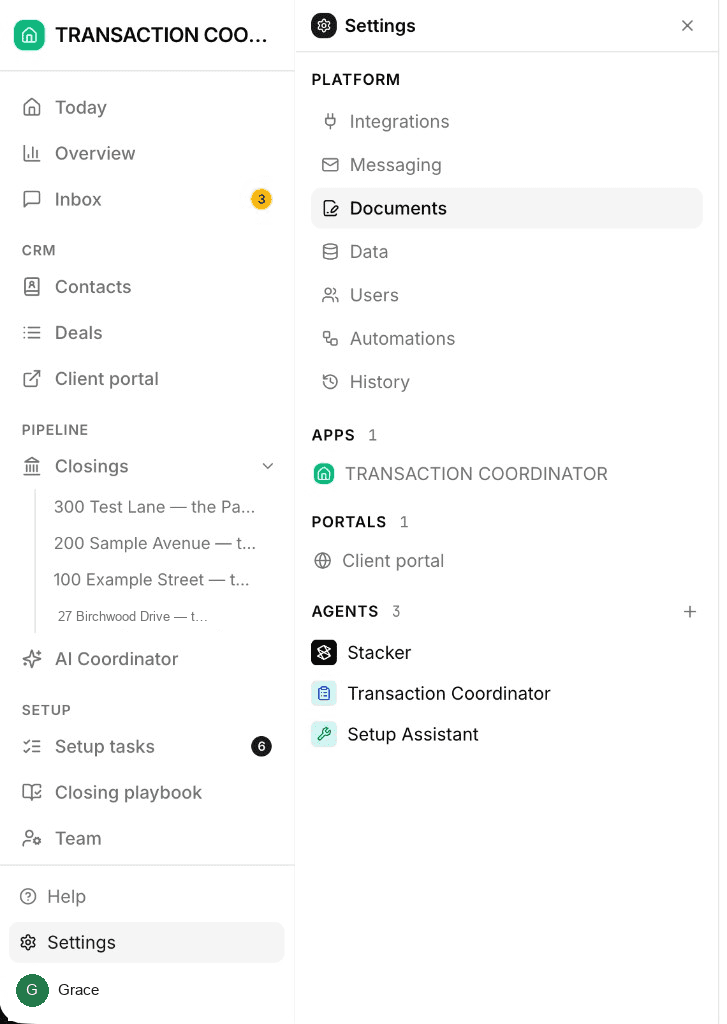
The workspace is where your team works. Everything is reachable from the left sidebar. Today and Inbox sit at the top — Overview joins them for brokers and team leads. Below that the menu follows the work: CRM, then Pipeline, then Setup. A New business group appears between CRM and Pipeline when you switch leads on.
Today and Inbox
Today is the landing page: your closings at a glance. Four tiles across the top — Active files, Need attention, Deadlines this week, and With the AI — then a week calendar of every dated milestone, task, and closing, the files in flight with the urgent ones first, and Needs you: questions the AI coordinator has asked, drafts waiting to be sent, blocked or overdue steps, and your own tasks with Mark done right on the row.
At the bottom, Recent activity is the activity log across every file for the last 14 days, grouped by day. Filter it to AI coordinator, Team, or Clients to see, say, everything the coordinator did this week without opening its threads; each row opens the closing it happened on.
When the workspace uses teams, brokers and team leads also get Overview, between Today and Inbox. It is the production view — what has closed, what is coming, and where to look — across the brokerage, or just their team. Agents don't see that entry; Today is their landing page.
Inbox is the team inbox and outbox: email, texts, and portal chat with clients and the other parties on your closings, in one list, each thread filed on the closing it belongs to. The blue badge is unread inbound mail; the amber one is Drafts to review — replies the AI coordinator has written and is waiting on you to send. See Inbox, email & SMS.
CRM — clients, deals, and their portal
Contacts is every person your brokerage deals with — buyers, sellers, and prospects, plus the professionals you work with across files. Each contact carries a stage (enquiry → lead → active client → past client), nurture temperature, source, and portal status.
Deals sits with Contacts because a deal is the client relationship you are working before it is a file under contract: a buyer search or a listing, with contacts, properties, and documents connected in one place. The page has tabs for the same records:
- All deals — buyer-side and seller-side together.
- Buyer searches — buyer-side deals, with search criteria and preferences. Shown when you represent buyers.
- Seller listings — seller-side deals, with listing-prep tracking: photos, listing copy, pricing, disclosures. Shown when you represent sellers.
Addresses live on the deal and, once you are under contract, on the closing. See Managing deals for the full walkthrough.
Client portal is the last item in CRM. Opening it shows a live preview of exactly what your clients see — you can browse it as any client, buyer or seller, and request changes without leaving the page.
Pipeline — under contract
Closings is every transaction that has gone under contract. The open files are listed right under it, soonest closing date first, so you can open one without leaving the sidebar. Click a name to land on that file. Click Closings itself — or View all, when more than eight are open — for the full list, where + New closing lives. The chevron on Closings folds the list away, and it stays folded in this browser. An agent who only sees their own files sees only those names. Starting a closing covers the list and the dialog; Tracking closings is the detail page you work each one from.
Showings and Offers join Pipeline ahead of Closings when you switch them on in Config — the order a deal moves through them.
AI Coordinator closes the section. It is the AI Transaction Coordinator's own page: its on/off switch, the numbers it is carrying, what it needs you on, and a fixed conversation with it that carries on across visits. See Meet your AI coordinator.
Setup — make it yours
Setup tasks is a guided path from sample data to your real business. Each task opens a conversation with the AI assistant. See Setup tasks for the full list.
Closing playbook is your brokerage's operating models per side: the default buy and sell playbooks (and any extras you add) that get stamped onto every new closing. See Setting up your closing playbook.
Team is where you manage the agents in your workspace — the people deals get assigned to, and the faces your clients see in the portal. See Team.
Config is the brokerage switchboard: Business (which side you represent, and which services add pages to the sidebar and the client portal), Team (what teammates can see), AI coordinator (its switch, and what it may send by itself), and Email & SMS (your Gmail connection and the coordinator's addresses). The form library is in the Settings gear, under Documents. See Config.
Two things called Settings — and why this one is Config
The app page is called Config because the platform's own Settings gear sits lower in the same sidebar. Config is how your brokerage works; Settings is workspace administration — users, integrations, data connections, automations, snapshots. See Using Settings.