
Tracking closings
The files still under contract are listed under Closings in the sidebar. Open one and you land on its detail page — the internal side your team works from. Clients never see this page. Drive the transaction with the milestone chain, ask the AI coordinator when you want a hand, and adjust anything that doesn't fit this deal.
Opening a file
Under Pipeline, the names under Closings are the open files, soonest closing date first. Click a name to open that file. Click Closings itself for the full list — every file your role can see, with + New closing — and click View all at the bottom of the sidebar list when more than eight are open. The chevron folds the list away. An agent who only sees their own files sees only those names. To start one, see Starting a closing.
The header and the tabs
Across the top: the closing's name, a Buy side or Sell side pill, the green Ask AI button (only while the AI coordinator is on; it stays greyed out until the coordinator has opened its thread on this closing, which a file started while the coordinator was off may not have yet), the risk selector — On track, Caution, At risk — and an Actions menu with Preview client portal, Mark as fell through, Mark as closed, and Archive closing. Under that, the key facts — purchase price, the clients, the other side, the assigned agent, and the closing date — are editable in place.
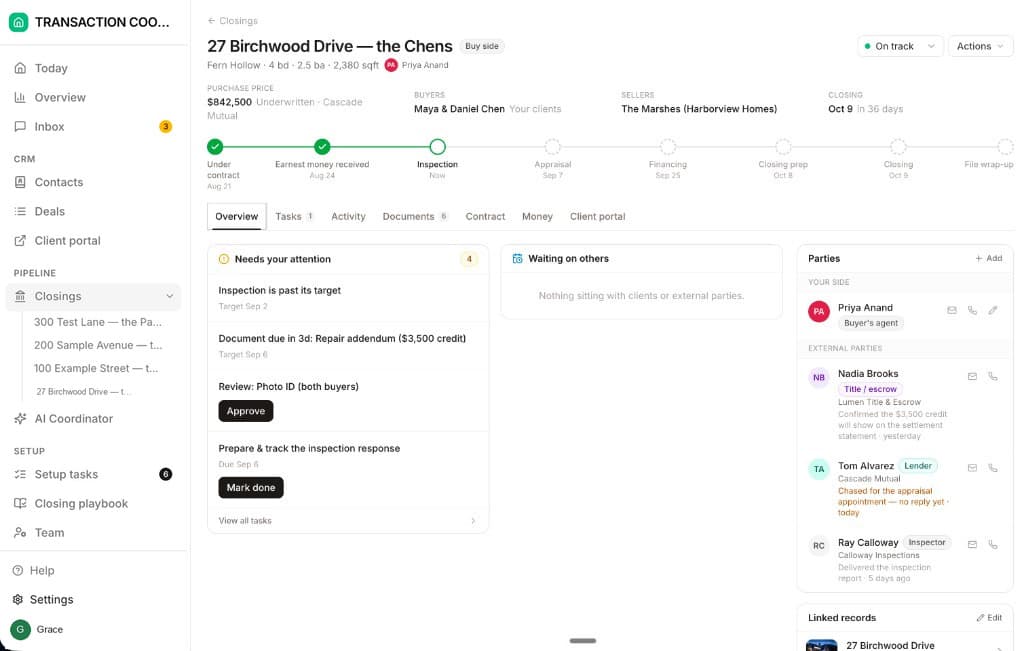
- Overview — the milestone chain, what needs you, and the parties.
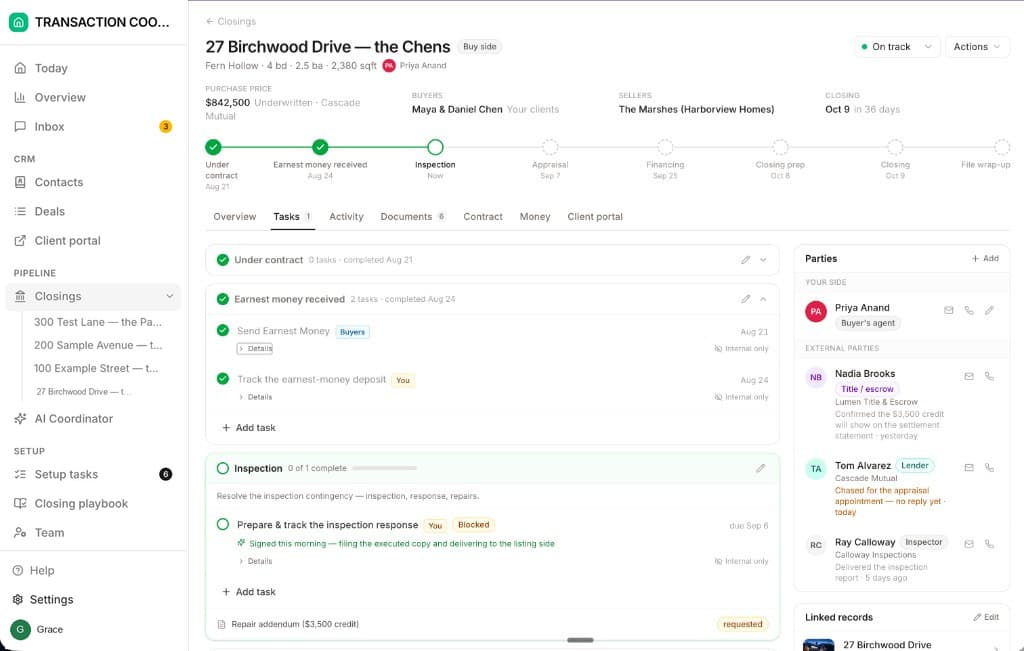
- Tasks — every to-do under every milestone, with the open count on the tab.
- Activity — the file's log: every chase the coordinator sent, every date that moved, every note, with who did it and when.
- Messages — the email, texts, and portal chat filed on this closing, plus any drafts waiting to be sent. Always on. See Inbox, email & SMS.
- Documents — the paperwork on the file, shared with the client or internal.
- Contract — the key terms extracted from the executed contract.
- Money — estimated cash to close (buy side) or net proceeds (sell side).
- Client portal — invite the client, or View as them.
Moving the closing forward
The row of circles under the header is the transaction's spine. Each circle is a milestone. Work them left to right.
Click the circle you're on
Work the tasks underneath it
Finish it and the next one opens
What you can change on this closing
The playbook is a starting point. Edits on this page apply to this transaction only — the template and every other closing stay untouched.
- Add a task under a milestone when something new comes up. Set whether it belongs to the Deal owner, the Client, an External party, or the AI coordinator, and whether it's Internal only or Client visible.
- Move a date on a milestone or task. The countdown, the client's timeline, and the attention list all follow.
- Rename or rewrite a milestone when the wording for this deal needs to change.
- Complete or waive a milestone that doesn't apply — the chain moves on.
Shape the reusable process in Setting up your closing playbook. Change this page when the deal is just being a deal.
Tasks: yours, the client's, the AI's, or internal
Every task says who does it — Deal owner, Client, External party, or AI — and whether the client can see it. Because the closing already knows which side you represent, client tasks are simply Client, not buyer or seller. Tasks marked Internal only stay on this page: your chases, your filing, your note about the lender who hasn't called back.
AI tasks are the AI Transaction Coordinator's to-do list on this file — the first one on every closing is reading the executed contract into its key terms and dates. The multi-line detail under an AI task is the runbook it follows. While the coordinator is switched off those tasks are shown as the team's. See Meet your AI coordinator.
The portal shows your client only their own tasks and where the transaction stands — not your internal checklist. Preview it from the Client portal tab. More on visibility in Workspace vs. client portal.
Overview: what needs you
The Overview tab is the triage view. Needs your attention lists milestones past target, documents coming due, reviews, and your tasks — with Approve or Mark done right on the row. Waiting on others is everything sitting with the client or an external party. When it's empty, the ball is entirely in your court.
Ask AI instead of reading the timeline
You don't have to scan the chain to know where things stand. Press Ask AI in the header and the closing's coordinator thread opens in the side pane — the thread where the coordinator has been working this file. Ask "what's blocking the Chens?" or say "push the inspection response to Friday" and it reads this closing and makes the change. The button only shows while the coordinator is switched on.