
Customizing your portal
The client portal isn't a fixed set of screens — it's yours to reshape. You change it by telling the AI assistant what you want, watching the live preview update, and iterating until it's right. No code, no theme files.
The change loop
Open the portal preview
Request the change
Review in the preview
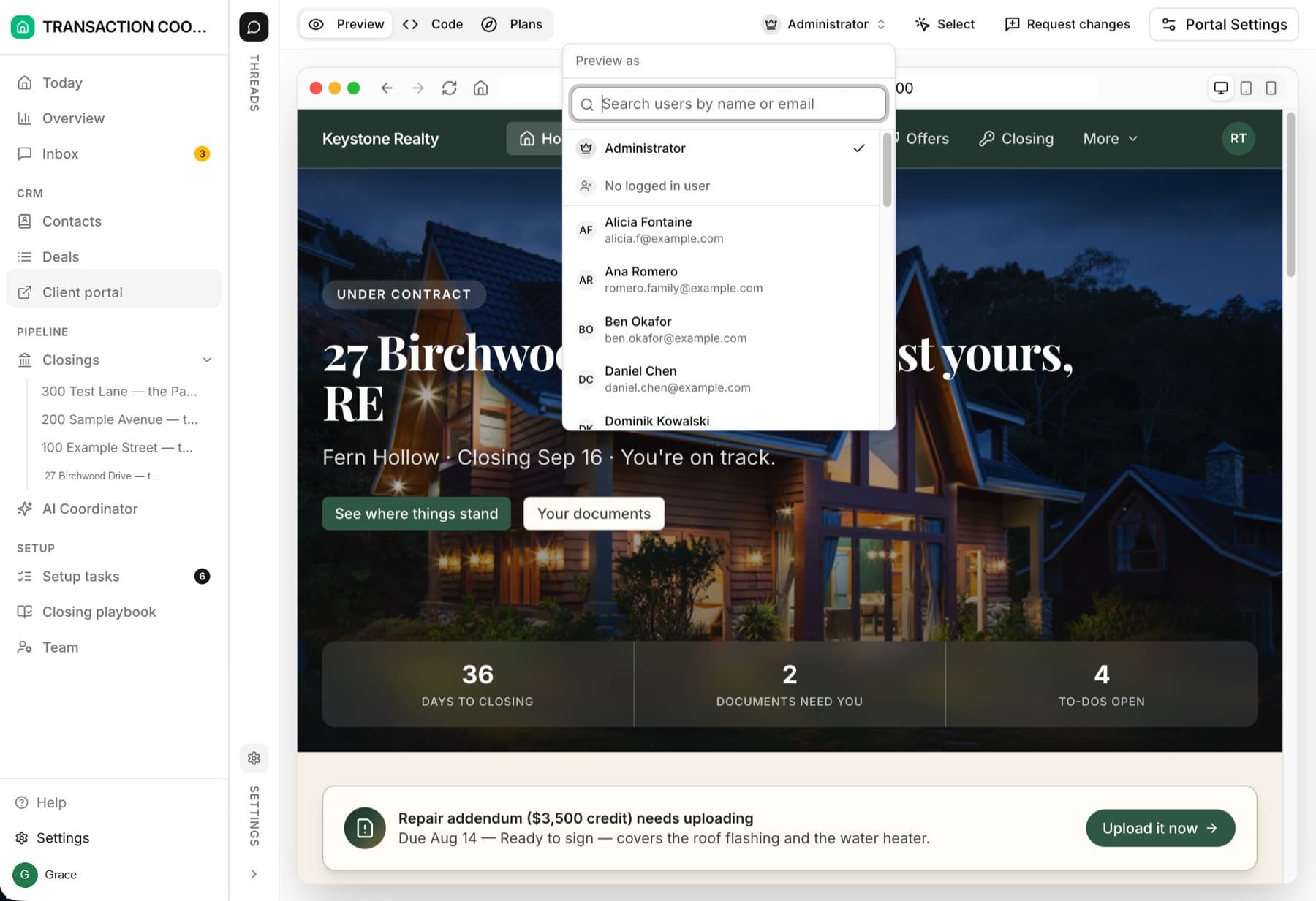
What people change
- Branding — your name, logo, and colors across the whole portal. ("Rebrand the portal to Harborview Homes — logo attached, navy and warm sand.")
- Copy and tone — welcome messages, section headings, the wording of client to-dos. ("Make the seller-side greeting warmer and mention their agent by name.")
- Layout — reorder the home page, promote the closing timeline to the top once a deal is under contract, hide a section you don't use.
- New sections — a moving-checklist page for buyers after closing, a neighborhood-guide section, an FAQ tailored to your market.
- What data shows — surface a field you care about ("show the inspection date on the buyer's timeline card") or remove one you don't.
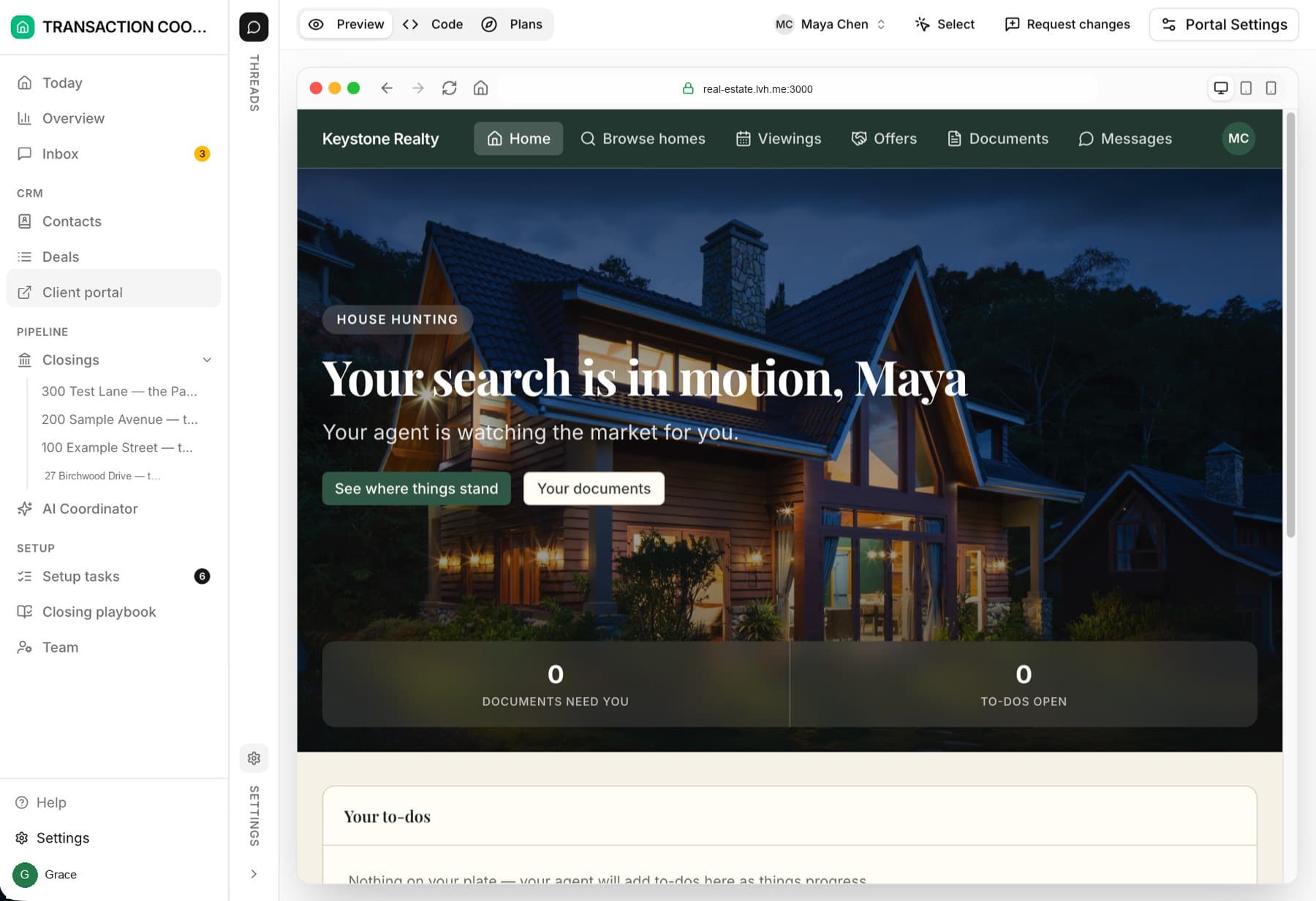
Keep both sides coherent
The buyer and seller sides of the portal have their own pages and copy, so a change aimed at one side doesn't automatically appear on the other. When you change something both audiences share — branding, tone, section styling — say so: "apply the same branding to the buyer and seller sides". The assistant keeps them consistent when you ask it to.
Changes are safe to try
Portal changes don't touch your data — restyling a page can't corrupt a deal. If a change lands wrong, tell the assistant to put it back the way it was. For bigger experiments, ask for the change, preview as a few clients, and only tell your clients once you're happy.