
Users
Users is where you manage who can sign in. It covers both your agents and staff who work in the workspace, and the buyers and sellers who use the client portal.
Open Settings, then Users. Workspace people and portal people are listed on separate tabs on the same screen.
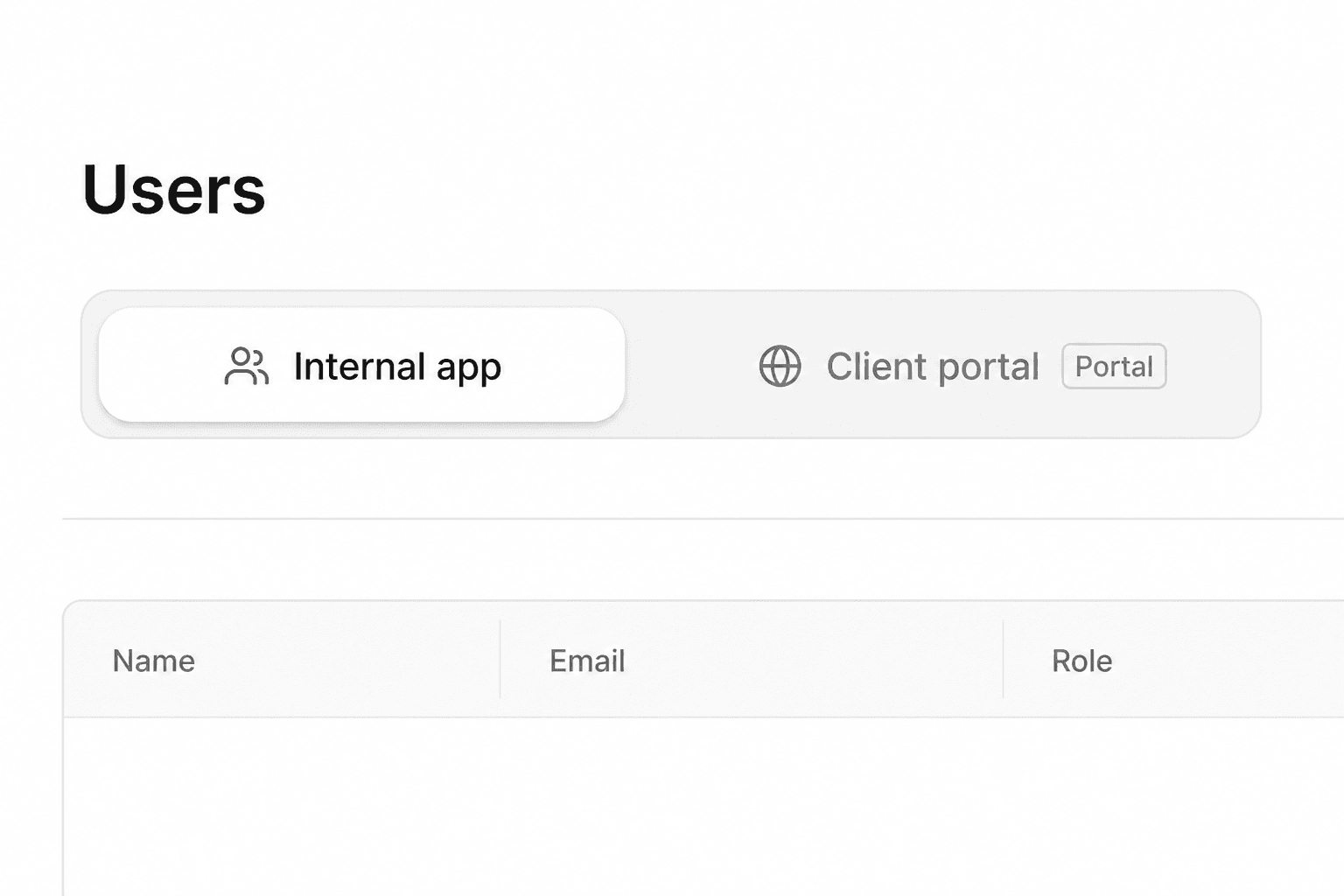
Workspace users
These are the people who sign in to DeedSpring to run deals and closings. Inviting someone here gives them a login. It does not replace the Team roster: add them on Team as well if they should be assigned to deals and appear on the client portal agent card.
1
Open the workspace tab
In Users, stay on the workspace (internal) tab.
2
Invite by email
Enter their email and choose a role: who can administer the workspace, who can build and configure it, or who can work records without those controls.
3
They sign in
They receive an invite and sign in with that email. You can change their role or remove access later from the same list.
Portal users
These are clients. They never see the workspace. Access still follows the contact record: email, Buyer and/or Seller role, and membership on the closing, property, or deal they should see.
1
Open the portal tab
In Users, switch to the client portal tab.
2
Confirm the contact
Check email, role, and that they are on the right closing, property, or deal. If anything is missing, add it on the record or ask the assistant to add them and verify permissions.
3
Send the login
Invite them or copy the portal login link from this screen. They sign in with a magic link or one-time code — no password. Previewing & inviting clients covers preview and troubleshooting.
What this screen does not do
- It does not create the Team roster record that powers deal assignment and the portal agent card. Use Team for that.
- It does not replace adding a client to a closing or property. Membership on those records is still what fills their portal.