
Previewing & inviting clients
Before a single client signs in, you can browse the portal exactly as they would — as a buyer or as a seller — and when you're ready, inviting a client is a matter of getting their contact record right and sending them their login link.
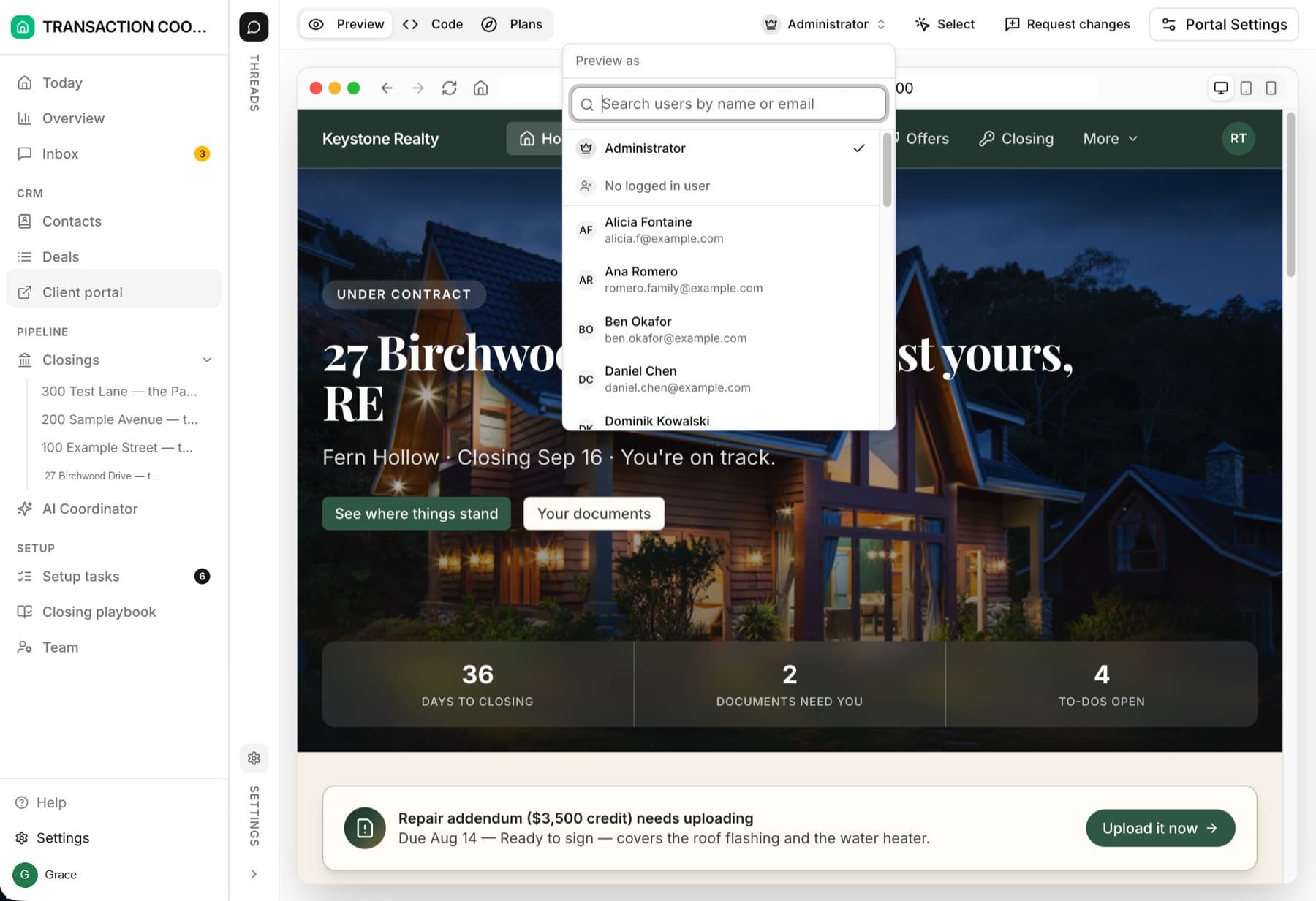
Previewing as a client
Open the portal from the sidebar
Pick who to view as
Check what matters
What gives a client access
There's no separate user-management screen to maintain — access follows the data:
- The contact has an Email — that's what they sign in with.
- The contact's Roles include Buyer and/or Seller — that decides which side of the portal they see.
- The contact is in the Members field of at least one deal on that side — membership is what puts content in their portal.
Each contact's Client portal field tracks where they stand: Not invited, Invited, or Active.
Inviting a client
Verify the contact record
Send their login link
They sign in — no password
Start with one or two clients
The Invite your first clients setup task walks this exact path with the AI assistant: pick a client or two, verify their records, preview as them, then send the invites. It's the gentlest way to go live.
Troubleshooting
Why is the client's portal empty?
The client is not linked to the records that populate it. Add them to the relevant closing, property, or the deal's Members field. You can also open a thread and ask the assistant to add the client and verify their permissions.
Why did the login email not arrive?
Confirm the address on the contact record and ask the client to check spam. The magic link is sent only to that address.
Why can the client not see their closing?
Confirm they are added to that closing and its property, that the closing is linked to their deal, and that the missing milestones are not marked Internal only or scoped to the other side. You can also ask the assistant to verify the client's permissions.