
Workflow · Product guides, pricing and migration
How SkySlope works: follow a file from setup to broker review
SkySlope Suite is the brokerage's file-review system. The agent attaches each document to a checklist, an Admin/Auditor or Broker accepts or rejects it in Quick Audit, and the brokerage closes and archives the file. It checks what is in the file. The deadlines and the chasing are still yours.
Who does what in SkySlope?
SkySlope has five roles, and two of them can decide. Agents and Limited TCs create files and attach documents. A Limited TC with TC Access can also open files for agents in the same office, and keeps access to the files it created. An Office Manager sees every file in the office but cannot accept, reject, close or archive anything. The Admin/Auditor does all of that and runs the checklists and the agent list. The Broker, one per brokerage, adds offices and decides what each admin may do.
Who can do what on a SkySlope file
| Action | Agent | Limited TC | Office Manager | Admin/Auditor | Broker |
|---|---|---|---|---|---|
| Create files | Their own | Their own, and for agents in the office | For anyone in the office | For anyone in the office | For anyone |
| See every file in the office | No | No | Yes | Yes | Yes, every office |
| Attach documents to the checklist | Yes | Yes | Yes | Yes | Yes |
| Accept or reject a document | No | No | No | Yes | Yes |
| Close, archive, reactivate, approve a cancellation | No | No | No | Yes | Yes |
| Manage checklists, agents and offices | No | No | No | Checklists and agents | Yes, and what each admin may do |
How does a file get created?
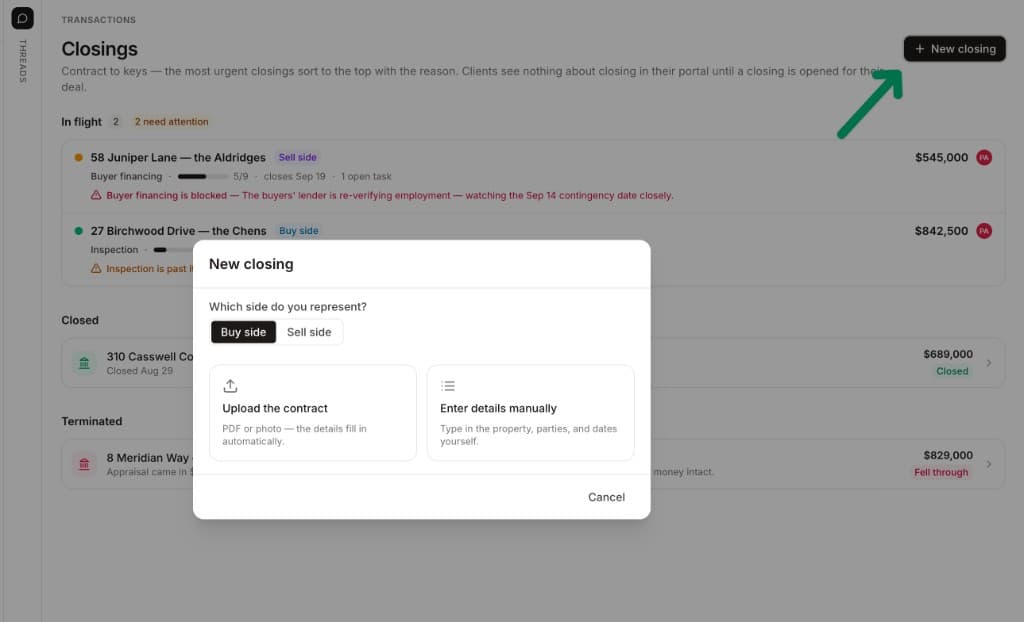
The agent clicks Create Transaction, says which side they represent, picks Under Contract, and finds the address through a linked Forms file, the MLS feed or Google Maps. Three tabs follow. Transaction takes the price, the acceptance and closing dates and the escrow number. Contacts takes the buyers, sellers and both agents, plus one of title, escrow or attorney. Commission takes the split. Click Submit on the last tab and the file lands on its checklist. Representing the seller? Start a Listing instead and convert it when the contract is accepted.
Until all three tabs are done the file is Incomplete, with no checklist and no Documents tab, so nothing can be uploaded to it. Once submitted it reads Pending for as long as today falls between the acceptance and closing dates, then Expired until an Admin or Broker closes it. Those are the only contract dates the file asks for. In California and Arizona an agent can instead upload the signed purchase agreement and let SkySlope read the address and the names off it; everywhere else you type them.
How do documents get into the file?
The checklist is the list of documents your brokerage requires for that file type, and it is also how you submit. Drop a PDF from your computer, drag it onto the item, forward the email that carries it to the file's own SkySlope address, or fax it with a cover sheet. The moment a document is attached to an item, the item turns yellow and reads In Review, and the reviewer can see it. There is no submit button for the file as a whole.
Signed documents arrive the same way. A DigiSign envelope created with Choose Property uploads the signed copy into the file when everyone has signed, and a linked Forms file drops its signed forms in too. Both land on the Documents tab. Attaching each one to its checklist item is still your click, except for the California and Arizona contract upload, which puts the purchase agreement on its item for you.
How does broker review work?
An Admin/Auditor or Broker opens Documents to Review, then Quick Audit, which opens the first pending document in the queue. The checklist sits on the left, the document in the middle with Accept and Reject above it. Accept turns the item green, Complete. Reject turns it purple, Incomplete, and the reviewer has to write a comment to the agent before Enter saves it and moves to the next pending document. Smart Assist, SkySlope's AI, outlines the signatures and initials it finds and suggests Cleared or Flagged in 21 states. Decide the wrong way and Unaccept or Unreject puts the item back to pending with the comments kept.
Rejections reach the agent through the Update Agent email, which the reviewer sends from the Checklist tab. It lists every item with its status and comments, carries a DigiSign shortcut that pulls a rejected document into a new envelope on the same file, and goes to the agent, the co-agents and whoever created the file. The agent removes the purple document with the X beside the paperclip and attaches the corrected one, and the item goes back to In Review. A green document can only be removed by an admin.
The reviewer can also move the file through the brokerage's own stages from a drop-down in Quick Audit. SkySlope's example is Closed - Not Ready to Pay becoming Closed - Ready to Pay after the compliance review. A stage is a label and a filter. The decisions are the green and purple items.
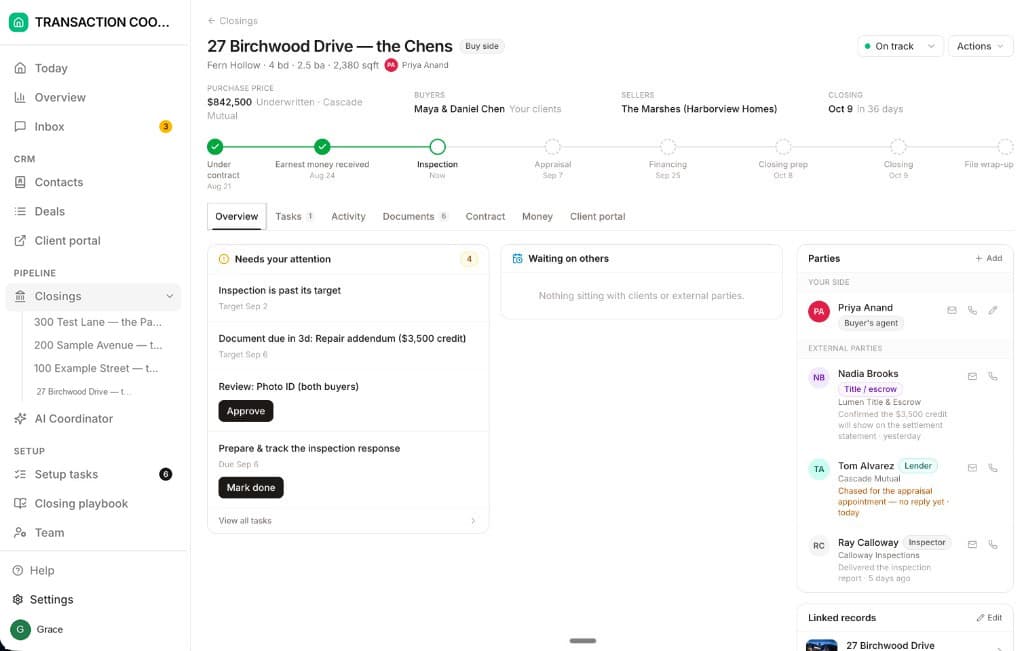
That is the whole of what SkySlope checks: the documents already in the file. Nothing in it reads the inspection period or the financing deadline out of the contract, counts the days, or emails the lender when the appraisal is late. The file asks for two contract dates, acceptance and closing, and the rest of the calendar is yours to keep. DeedSpring does that part. Upload the executed contract and it reads the price, deposits, contingencies and dates into deadlines, checks every active file every hour, and drafts the chase for you to send.
What does a file go through, start to finish?
One buyer-side file, from the executed contract to the Archives. The agent does the first three steps, the brokerage reviews from the fourth, and the loop in steps four to six repeats until every required item is green.
Step 1: Create the transaction
The agent, or a Limited TC with TC Access, picks Under Contract, fills the Transaction, Contacts and Commission tabs and clicks Submit, and the file turns Pending.
Step 2: Get the documents signed
A DigiSign envelope linked to the file, or a linked Forms file, delivers the signed copies into the file's Documents tab.
Step 3: Attach each document to its checklist item
That is the submission. The item turns yellow, In Review, and joins the reviewer's queue.
Step 4: Accept or reject each document in Quick Audit
Accept turns the item green. Reject turns it purple and needs a comment telling the agent what to fix.
- Owner
- Admin/Auditor or Broker
Step 5: Send the Update Agent email
One email carries every item's status, the rejection comments and a DigiSign shortcut for anything that needs new signatures.
Step 6: Remove the rejected document and attach the corrected one
The agent clicks the X beside the paperclip, attaches the new copy, and the item goes back to In Review for a second decision.
- Owner
- Agent or Limited TC
Step 7: Generate the CDA
Generate CDA or Create CDA on the Commission tab writes the commission disbursement authorization to the Documents tab as a PDF.
Step 8: Close and archive
An Admin or Broker confirms the closing date, moves the file to the Archives, and the data locks.
- Owner
- Admin/Auditor or Broker
If the deal dies, the agent cancels from Transaction Actions and the file sits at Canceled/Pending until an Admin or Broker approves it. An Admin or Broker canceling directly ticks Fully Canceled and skips the approval.
What happens when the file closes?
Once escrow has closed and the checklist is complete, an Admin or Broker opens Transaction Actions, clicks Close Transaction, confirms the closing date, switches the toggle that sends the file to the Archives, adds an optional note to the file's Log and clicks Submit. Before that, the CDA generator on the Commission tab turns the commission figures into a disbursement authorization PDF, if your brokerage has it switched on.
A closed file is locked. To fix a price or a date, an Admin archives it, reactivates it, edits it and closes it again. Any role can download an archived file's documents as a zip from Access Archives, and that is the only place a whole file downloads in one click.
The job SkySlope leaves to you
SkySlope is where the paperwork goes to be checked. DeedSpring is the coordinator who makes sure the paperwork, and the deal, show up on time. Upload the executed contract and it reads the price, deposits, contingencies and dates into deadlines on the file. It checks every open closing every hour, flags what is slipping, and drafts the chases and client updates for you to send, with anything sensitive or negotiable always waiting for a person. Your buyers and sellers get a portal, and e-signing is built in. If your brokerage runs SkySlope, it sits beside it and does the chasing SkySlope doesn't.
Starter is $15 a month for one closing a month. Standard is $25 a closing, down to $19 at volume, with unlimited agents and teammates and unused closings rolling over. Both are month to month.