
Workflow · Transaction coordinator operations
How to cover transaction files when your coordinator is away
Give the backup their own login on every open file, move the inbox before the coordinator leaves, and hand over one page per file. Here is the order to do it in, what each tool lets a backup see, and the handover template.
Who does what while the coordinator is out?
The coordinator owns the setup: naming the backup, sharing the files and writing the handover. The backup owns the files from the first day of the absence to the last, which means the deadlines, the chases and the inbox. The agent owns every decision that moves money or terms, exactly as they did before, and answers the backup the same day. The broker or team lead owns the fallback: if no backup can be found or given access in time, the files are theirs.
The failure that actually happens is quieter than a missed closing. A backup is named, gets a login, and discovers on day two that they cannot see half the files. SkySlope and dotloop both scope a coordinator’s own login to the files they were put on, so a second coordinator starts with nothing until someone adds them, file by file. Open To Close and DeedSpring can open the whole desk to a backup from the admin side, if someone sets it that way before the absence starts.
Can the backup actually see the files?
What a backup coordinator can see and do in each tool
| Question | DeedSpring | dotloop | Open To Close | SkySlope |
|---|---|---|---|---|
| How the backup gets in | Named on the closing as Coordinator or under Also working this closing. | Add to my team on each loop, or a team admin works On Behalf Of the agent. | Their own team-member seat, or an admin impersonates the coordinator. | Their own TC account, added on the Contacts tab of each file. |
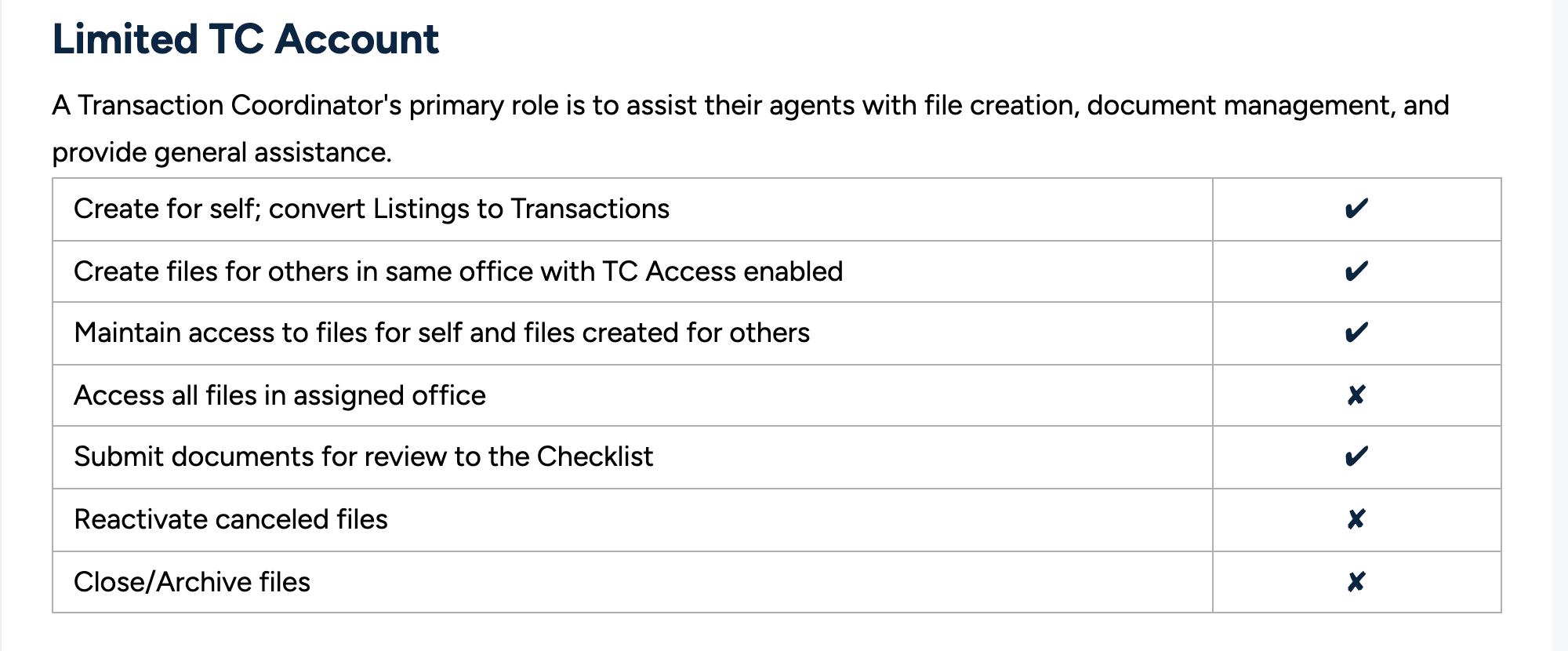
| What they can see | Every closing they are added to, the deals behind them and the clients on those deals. | Everything in that loop: documents, people and tasks. | What their permissions and team allow. Impersonation opens the coordinator’s transactions and tasks. | Files they created and files shared with them. A Limited TC cannot see the whole office. |
| What they cannot do | Delete records, unless they hold the Broker/admin role. | Submit the loop for review when added as On my team. The agent submits. | Anything outside their permission set. Admin permissions are the ones to ration. | Reactivate, close or archive files, or see files nobody shared. |
| What the record shows | The closing’s Activity tab and Today’s Recent activity feed, filterable to Team. | Activity log entries as the admin on behalf of the agent. | The help pages do not say. Assume impersonated actions show as the coordinator’s and keep your own log. | The file’s Log tab, under the backup’s own name, if they used their own account. |
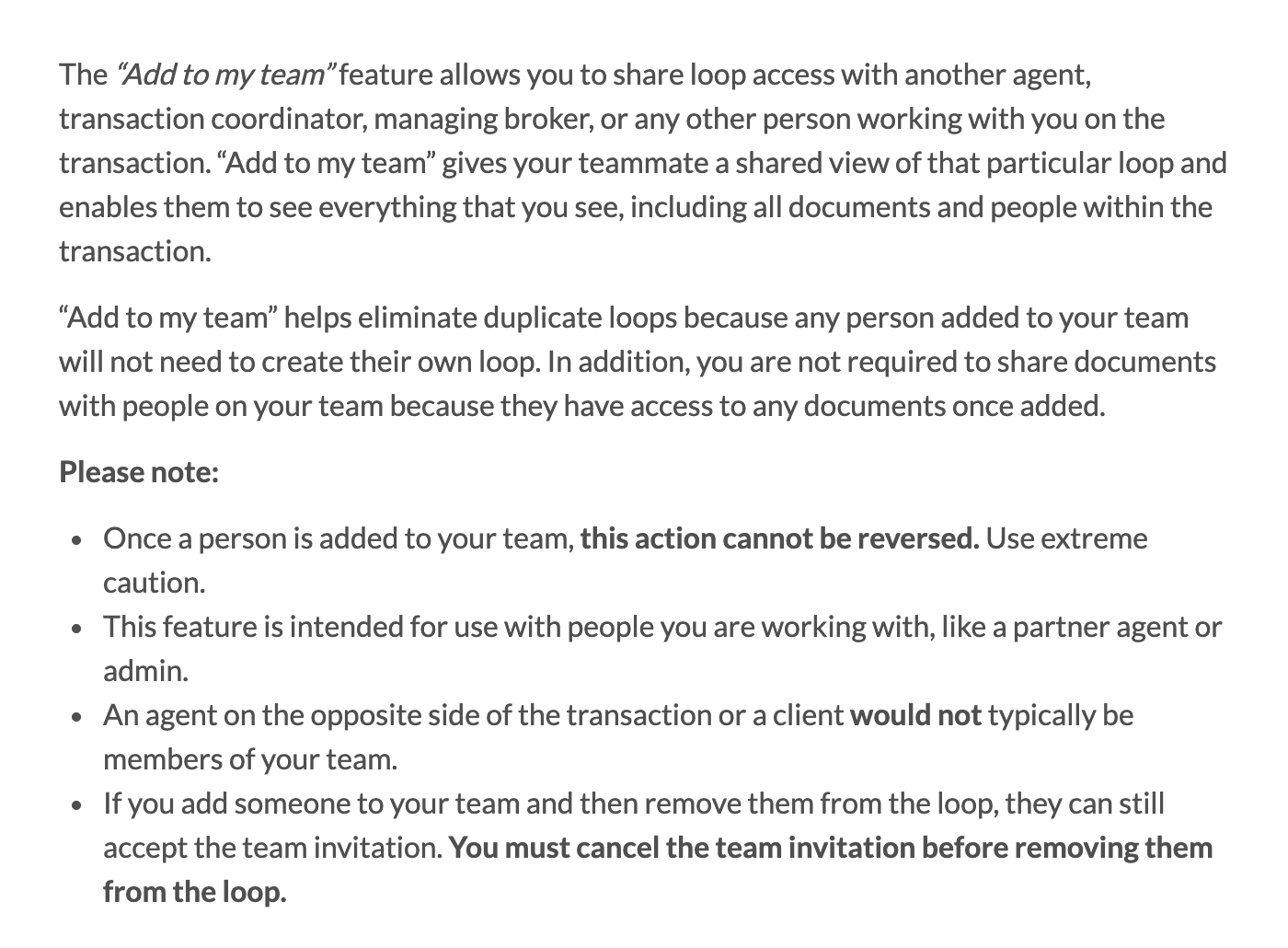
| Taking it back | Remove them from the closing. The grid decides what else they still see. | Team membership on a loop cannot be reversed. Remove them from the loop instead. | Change permissions or remove the seat. Deleting a member first reassigns their properties. | Remove the TC from the Contacts tab, file by file. |
| What a backup seat costs | Nothing. Standard includes unlimited teammates. | No price on dotloop’s pages for a loop teammate. On Behalf Of needs a team admin. | $69 a month per additional user. | Their own TC account in the same office. |
SkySlope is the strictest. A Limited TC account can create files for agents who have TC Access switched on, and keeps access to the files it created, but it cannot see every file in the office. To put a backup on a file the primary coordinator opened, the agent goes to that file’s Contacts tab, finds the backup through Search Contacts, and sets the access toggle on. The toggle only appears if the backup has a TC account in the same office. Typing a name into the TC fields lists them and grants nothing. An Office Manager account sees every file in the office, which makes it the better seat for a standing backup, though it cannot accept or reject documents or close and archive files.
dotloop gives you two routes. Add to my team on a loop shows the backup everything in it, and dotloop warns in bold that it cannot be reversed for that loop. A backup added this way still cannot submit the loop for review. The agent has to. On a dotloop team account the admin can instead work on behalf of the agent, which opens the agent’s whole profile, records every action in the activity log as the admin acting for the agent, and keeps any signature the admin applies as the admin’s own. Agents can switch that access off from their profile settings, so check it is on before the coordinator leaves.
Open To Close treats coverage as an admin job. The Organization page lets an admin impersonate a team member and work their transactions and tasks, including sending triggers on their behalf, so a backup with admin permissions can step into the coordinator’s desk without any per-file sharing. Each seat carries its own permission set across nine sections, from Properties to Admin, and Open To Close tells you to be careful handing out the Admin one. A permanent backup seat is $69 a month on top of the plan.
Who owns the inbox while they are gone?
Most of a coordinator’s work arrives by email, so the inbox is the file most often left behind. If the coordinator works from Gmail, add the backup as a delegate. A delegate can read, send and delete mail in the account, and their own address shows on anything they send. The invitation expires after a week and it can take up to 24 hours before the delegate can get in, so do this a week before departure and test it. A delegate cannot change the password.
One coordinator on r/realtors who covers an agent’s business a few times a year, with their own access to the files and the MLS as that agent’s TC, described the setup that makes the first day easy. The same pattern works in reverse when the coordinator is the one leaving.
“She copies me on all emails for about a month before she leaves and gives clients & title cos etc my number and email.”
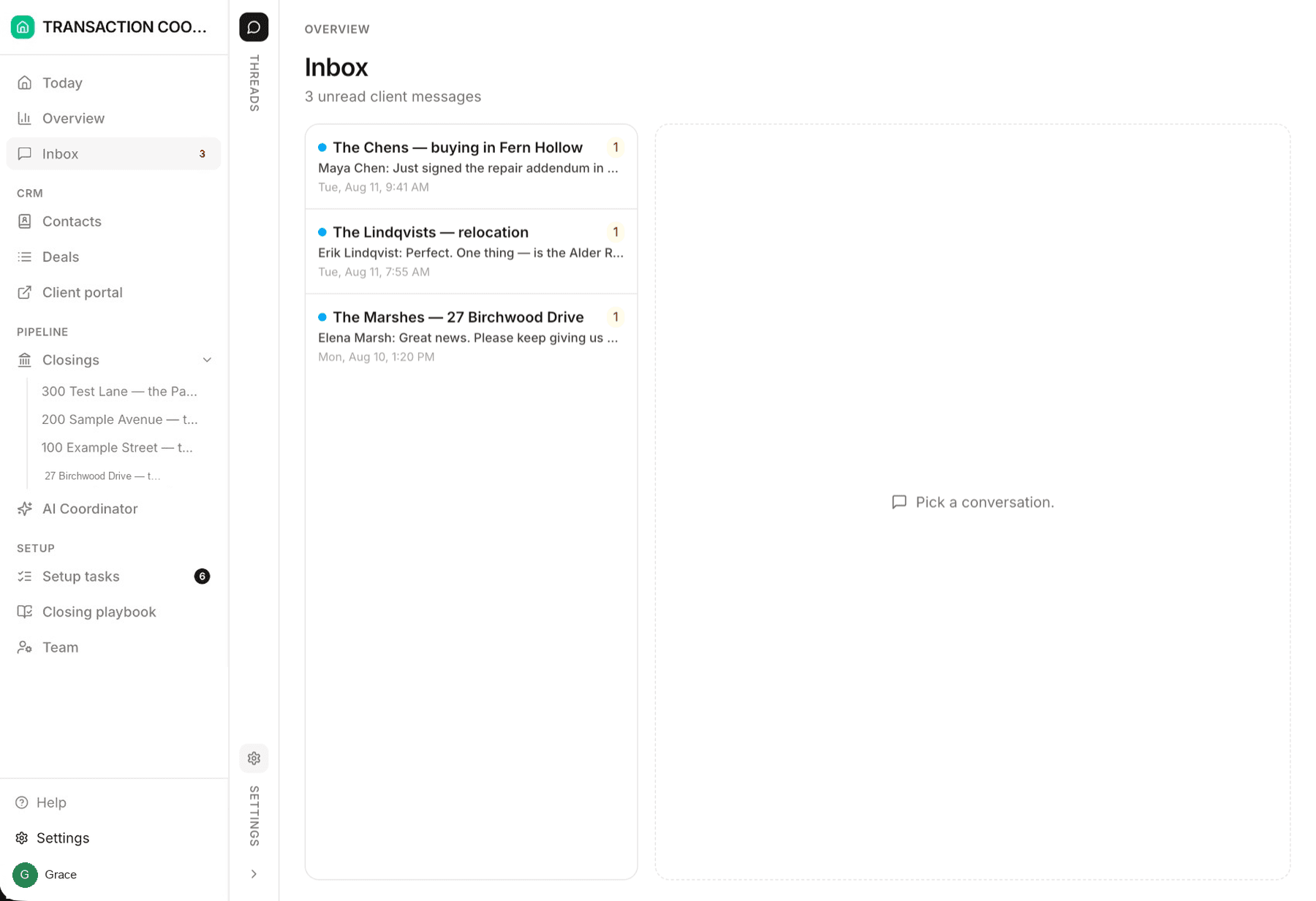
In DeedSpring the inbox is already shared. Email, texts and portal chat land in one Inbox for the whole team, each thread lands on the file it belongs to, and whoever replies picks any address they may send from: their connected Gmail, the coordinator’s own address or a shared mailbox. The backup opens the same Inbox the coordinator used yesterday, filters to Drafts to review, and carries on. The AI coordinator keeps checking every active file every hour and chasing whoever is late, whichever person is out.
What are the steps, in order?
Step 1: Book the absence and name one backup
The day the dates are known, the coordinator names one person who will carry the files and the broker or team lead confirms it in writing.
- Owner
- Coordinator
Step 2: Get the backup their own login
Ask the admin for a named account in every system the files live in, and never hand over a password. If the account cannot be created in time, the broker or team lead covers from their own login.
Step 3: Share every open file
Work down the active list and add the backup to each file, or confirm the admin-side access that covers them all. On SkySlope the agent does this, from each file’s Contacts tab.
Step 4: Move the inbox a week early
Set up email delegation or a shared mailbox at least a week out, and start copying the backup on every thread. A delegate can take up to 24 hours to get in.
Step 5: Write one handover page per file
Use the template below. The pending requests and the open decisions matter more than the documents, which the backup can already see.
Step 6: Tell every party who to call
Agents, clients, lenders, title and the co-op agent get the backup’s name, number and email in one message, sent from the coordinator’s address. Change the voicemail and the auto-reply to say the same thing.
Step 7: Walk the files together
One call, every file, in closing-date order. The backup reads each handover page back and asks about anything that is not written down.
Step 8: Cover
The backup works the deadlines and the inbox daily and logs what they did on each file. A question the handover page does not answer goes to the agent the same day, with the file and the date.
- Owner
- Backup
Step 9: Hand the files back
The returning coordinator reads each file’s log before touching it, then removes the backup’s access or leaves it in place for next time. On dotloop, team membership cannot be undone, so remove the backup from the loop or leave it in place.
- Owner
- Coordinator
What goes on the handover page for each file?
One page per open file, written by the coordinator and read back by the backup on the walkthrough call. Replace every bracket. The documents are already in the file, so the page covers what is pending, what is undecided and what is about to go wrong.
Active file handover (template)
- File: [property address], [buy side / sell side], agent [name], closing [date]Where the file lives: [system and link]. Backup added on [date].
- Next three deadlines: [item, date, who owes it]Say which dates came from the contract and which from brokerage policy.
- Requests out and unanswered: [what, to whom, sent on, chase on]One line each. Include the last reply you had and the date.
- Decisions waiting on the agent or client: [decision, due by]The backup asks and the agent answers. Name the question exactly.
- Money and terms in motion: [extension, repair credit, price change]Anything negotiable goes to the agent. The backup does not reply on these.
- Signatures out: [document, signer, sent on]Where the envelope is and who gets the reminder.
- People who are hard to reach, and how: [party, best channel, best time]
- Risk you already see: [what could slip and the fix you were working]
- Broker review status: [submitted / returned / approved] and what is outstanding
- Agent’s preferences: [how often to update the client, who signs what]
When does the backup stop and call the agent?
Whenever the answer changes money, terms or a date. A backup can send a reminder, chase a lender and upload a disclosure. A backup does not agree an extension, accept a repair credit or tell a seller bad news, and the handover page says so on every file. The tools enforce some of this for you: on dotloop a backup on the loop team cannot submit for review, and on SkySlope a Limited TC cannot close, archive or reactivate a file. Anything the system blocks goes to the agent or the broker that day, in writing, with the file and the deadline in the first line.
If the brokerage reviews files, tell compliance who is covering, so a returned item goes to the backup instead of sitting in the coordinator’s queue for two weeks.
What runs while nobody is at the desk?
Coverage in DeedSpring is a field on the closing. Name the backup as the Coordinator, or add them under Also working this closing, and they see that closing, the deal behind it and the clients on it. The Closings page filters by coordinator, so the team lead can see the whole covered desk in one view, and the brokerage Overview lists files with nobody running them. The Sharing grid sets how far each role sees, and a transaction coordinator on the default setting already sees every deal and client.
The work itself does not wait for the handover. The AI Transaction Coordinator checks every active file every hour, flags a milestone past its date or a task nobody has moved on Today and on the closing, and sends the chase until the item is confirmed in writing. Anything sensitive or negotiable is always drafted for a person to send, so the backup reviews what the agent would have reviewed and nothing more.