
Workflow · Transaction coordinator operations
How to run a weekly transaction status review
A weekly transaction status review is a 30-minute decision meeting on every file under contract: pull the list from your system first, walk only the files that changed, stalled or close within ten days, and leave each one with a next action, an owner and a date written on the file.
What does the weekly review decide?
The daily queue tells you what is due today. The weekly review decides what to do about the files that are not moving. It starts when the coordinator has the under-contract list in front of everyone, and it ends when every file discussed has a decision on it. Before you sit down, every live file is in the system with its acceptance and closing dates, and the agents whose files are on the list are coming.
Transaction-coordination firms sell this as a service. The TC Company offers clients weekly pipeline emails of what is upcoming and outstanding across every transaction, with pipeline calls “weekly, bi-weekly, or monthly”. Weekly is the right cadence once you have more than a handful of files, because contract deadlines are counted in days and a fortnight is long enough to miss one.
Who is in the room, and which list do you read from?
The coordinator runs the meeting and owns the list. The agents whose files are on it attend, because they hold the client conversations and sign the extensions. The team lead or broker attends to break ties and take escalations. Nobody else, because a meeting with an audience turns into a performance and people stop saying a file is in trouble.
The list comes from the system. Where it lives depends on what your brokerage runs.
Where the weekly under-contract list comes from in each system
| Question | DeedSpring | BoldTrail BackOffice | dotloop | SkySlope |
|---|---|---|---|---|
| Where the list lives | Today, and the Overview for brokers and team leads. | The Pipeline funnel, Pending stage. | The Reporting tab, or Report Builder in the admin profile. | The Pending Report in the Admin Hub. |
| What counts as under contract | An active closing, opened from the executed contract. | Pending: under contract and moving toward closing. | The loop status the agent set. | Today falls between the acceptance date and the closing date. |
| Date you sort on | Deadlines this week, and milestones past target. | Closing date, within each funnel stage. | Closing date, offer date or creation date; one year at most. | Acceptance date range you type in. |
| What it flags for you | Need attention, files at risk, overdue milestones, quiet deals. | Deposits not received or overdue, and document review states. | Bars colored by loop status. No flags. | Nothing. The report is a spreadsheet. |
| Who can run it | Everyone sees Today. Brokers and team leads see Overview. | Admins and owners see the office; agents see their own. | Business+ or Teams; Report Builder from the admin profile. Premium sees own loops. | Admins and brokers. |
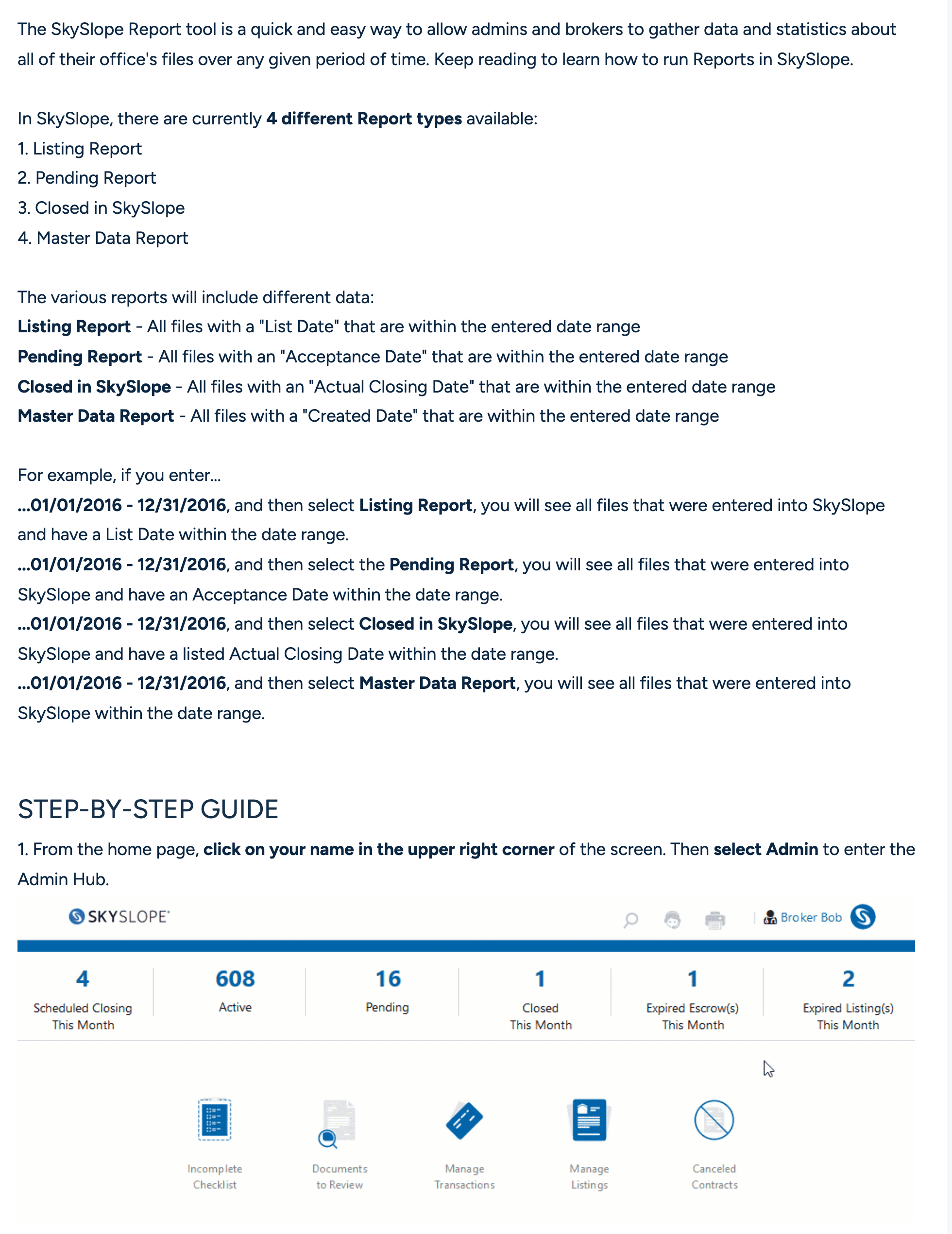
In SkySlope the list is the Pending Report: every file with an acceptance date in the range you type, downloaded from the Admin Hub as an Excel spreadsheet with the acceptance date, closing date, parties, agent and price on each row. A file is Pending while today falls between its acceptance date and its closing date. Once the closing date passes without a close, SkySlope marks the file Expired. The dashboard itself shows only the six most recently modified files.
In dotloop the Reporting tab charts sales and loops created by month, colored by loop status, for the office, team or person over the last 30, 60 or 90 days or year to date. The sales chart only works if agents have entered the purchase price and closing date and set a loop status on every loop, which makes agent discipline the first item on your agenda. For a list you can sort, the Broker Report Builder exports a CSV from the admin profile, filtered by loop status, review stage and closing, offer or creation date, with the range capped at one year.
BoldTrail BackOffice draws the book as a funnel: listings at the top, pending deals, closed transactions at the bottom. Pending means “under contract and moving toward closing”, and within each stage the files sort by closing date. Admins and owners see office totals. Agents see their own net income and volume. The Company reports add a Pendings Detail list, a Document Review Status report across every checklist, and an earnest money status report you can filter to “not received” or “overdue”.
Open To Close is built for the coordinator's own day rather than the room. Its dashboard widgets show triggers that are past due or due within two days, documents awaiting approval and intake forms waiting to be processed, scoped to the signed-in user's transactions and teams. Its Reporting feature charts counts or dollar amounts by property field and by agent or user, and cannot yet use a date field. Prepare from the dashboard and walk the files from the trigger pipeline.
How do you run the meeting?
Thirty minutes, same slot each week, one screen shared. Trackxi's version walks only the deals that are “flagged, stalled, or closing within ten days” and asks three questions of each. Janet Miller, a Tom Ferry coach, gives team leads four for every opportunity in a pipeline review: what changed since the last review, what the next useful action is, who owns it, and when it will happen. Those questions, asked of under-contract files instead of leads, are the whole agenda.
Step 1: Pull the list the day before
Run the under-contract list from the system, sorted by next deadline, and send it to everyone who will be in the room.
- Owner
- Transaction coordinator
- If it fails
- If an agent's files are missing dates or statuses, the agent fixes them before the meeting, because the list only shows what the system holds.
Step 2: Check last week's decisions
Open last week's entries and ask one question of each: done or not. An action that is not done gets a new date and the same owner, in the first two minutes.
Step 3: Read the headline numbers
Files under contract, closings this week, new contracts since last week, and anything that fell through. No discussion yet.
Step 4: Walk the exceptions
Take only the files with a deadline inside ten days, files that have not moved since last week, files waiting on a third party, and files with no owner on the next step. For each, ask what changed, what happens next, who does it and by when.
- If it fails
- If nothing has changed on a file two weeks running, the team lead takes it out of the meeting and triages it the same day.
Step 5: Decide the dates that will slip
Any contract date that cannot be met gets a decision now: who asks for the extension, who drafts it, and who tells the client.
- Owner
- Agent, with the coordinator drafting
Step 6: Look at what is coming
Contracts expected next week and closings in the next 30 days, so the coordinator's load is balanced before it lands.
Step 7: Write it on the file and read it back
Every action, owner and date goes on the file record, not in minutes. The coordinator reads the list aloud before anyone leaves.
- Owner
- Transaction coordinator
The order matters. Last week's decisions come first because checking them is what keeps the meeting from becoming a readout. Deadlines inside ten days come before anything interesting, because a missed contingency date is the one thing in the room that costs money this week.
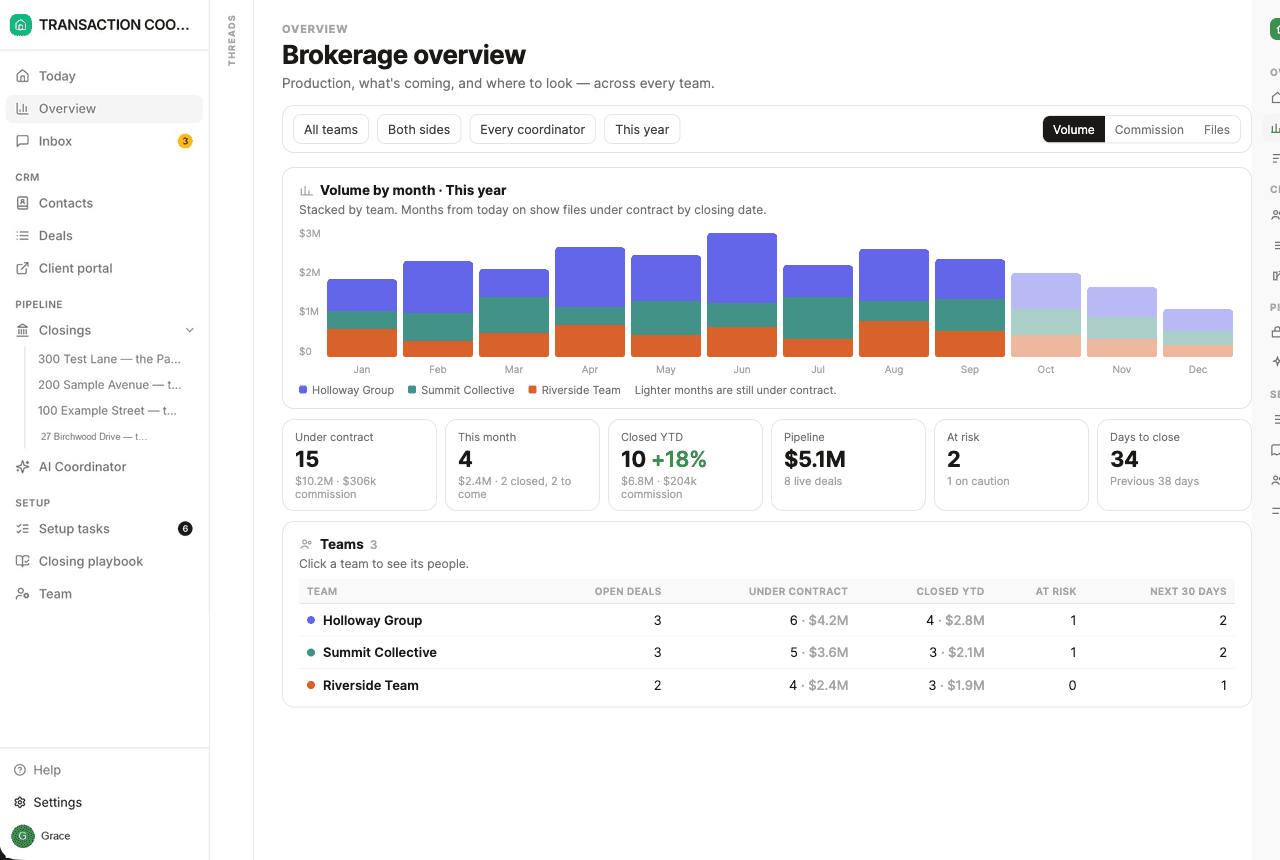
In DeedSpring, step one's list is on screen when you open the app. Today shows four tiles, Active files, Need attention, Deadlines this week and With the AI, then the week's dated milestones and the files in flight with the urgent ones first. The coordinator checks every active file every hour and flags a milestone past target or a task nobody has moved, so Monday's exception list is current to the hour. Brokers and team leads get the brokerage Overview on top: volume by month with the files still under contract shown lighter, and a Needs a look panel of files at risk, closings this week that are not clear to close, files with nobody running them, overdue milestones and quiet deals. Each closing carries a risk selector, On track, Caution or At risk, which is where the meeting's verdict on a file gets recorded.
What goes on the file?
A decision is a sentence with a fact, an owner and a date in it. Waiting on lender is a description of last week. The entry below is the shape every file discussed leaves with. Put it in the file's notes or activity log, where the person who has to act will see it and next week's review can find it.
TemplateWeekly review entry
One entry per file discussed, written during the meeting. Replace every [placeholder]. Leave nothing blank: an empty owner or date is the finding.
[Property address] · [Buy side / Sell side] · Closes [closing date]
Reviewed [meeting date]

Changed since last review: [the fact, with its date: appraisal ordered, inspection response signed, lender asked for X]
Blocker: [what is stopping the next milestone, and who holds it]
Next action: [one verb and one object: call the lender for the appraisal date, or send the extension for signature]
Owner: [name]
Due: [date]
Risk: [On track / Caution / At risk]
Escalate to: [team lead name] if not done by [date]
Before the meeting, a typical blocker line reads title is slow. After it, the same line says title has not received the payoff statement it requested on a named date, the listing agent calls the seller's lender by a named date, and the coordinator confirms receipt the day after. One version can be checked next week and the other cannot.
What do you do when a file fails the review?
A file fails the review when it leaves without an owner or a date, when the same blocker appears two weeks running, or when a contract date is going to pass. The first is fixed in the room: the team lead names the owner before the next file comes up. The second comes out of the meeting for a triage of its own that day, because a file that has not moved in a fortnight has a cause nobody in the room has found yet. The third needs the agent to act before anyone leaves: an extension drafted, signed and sent, or a decision to let the date pass and tell the client why.
Files that fall through leave the list the same week, with the reason in one sentence on the record. SkySlope keeps cancelled files in a Canceled Contracts view off the dashboard, and BoldTrail BackOffice has a Canceled Transactions report filterable by team, owner and side.